Texture Studio Guide
Learn how to select the regions you want, freely edit their colors, and save the results.
きせった (Kisetter) 3.5.0 documentation⚫ Texture Studio adjusts mesh texture colors in Unity while showing the result in the Scene view.
⚫ Select meshes and UV regions, use the color tools you need, then preview and save the result.
| Feature | What it does |
|---|---|
| Mesh and UV selection | Recolor an entire mesh or adjust the color of just the parts you select. |
| Set Hue / Hue Shift | Give clothing or hair the color you want, or make existing colors brighter or more vivid. |
| Gradients | Create smooth blends between multiple colors. |
| Automatic color adjustment | Match colors across different parts for a consistent look. |
| Preview / history | See the difference before and after editing, and recover an earlier state when needed. |
| Save | Keep the finished colors as textures and materials for use on your avatar. |
[1] Prepare the workspace#
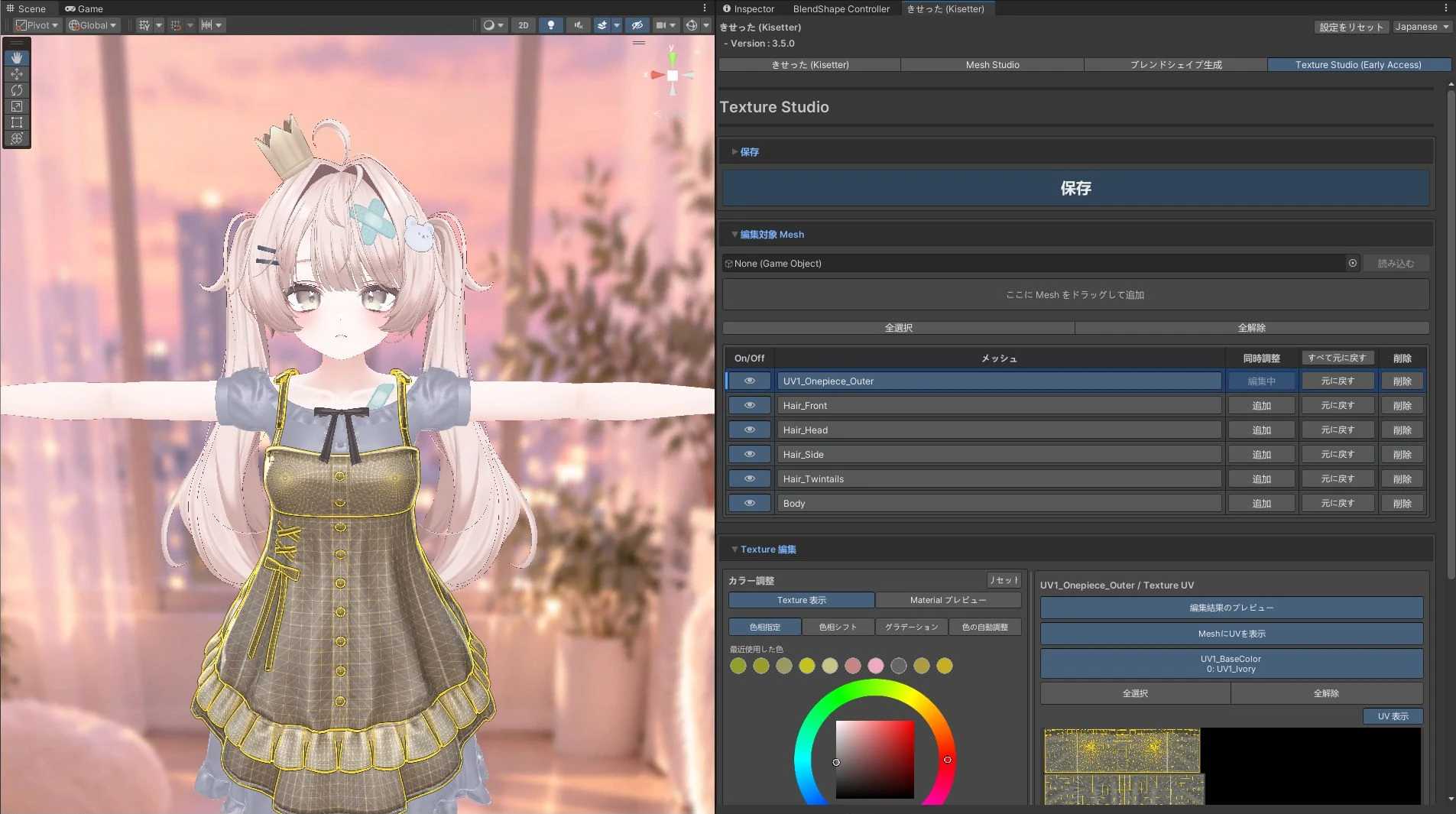
- Open Texture Studio (Early Access) at the top of the きせった(Kisetter) window.
- Assign an outfit, hair object, or parent under Meshes to Edit and click Load. You can also drag meshes from the Hierarchy into the central drop area.
- Click a mesh name to make it the main editing target. Its row shows Editing.
- Select a texture tab in Texture UV on the right. Material slots sharing a texture are listed together.
[2] Select meshes and UV regions#
Adjust multiple hair meshes together#
- Click the name of one hair mesh to make it the main editing target.
- Click Include for the other hair meshes you want to adjust.
- Check that those rows show Included and the heading on the right shows the number of added meshes.
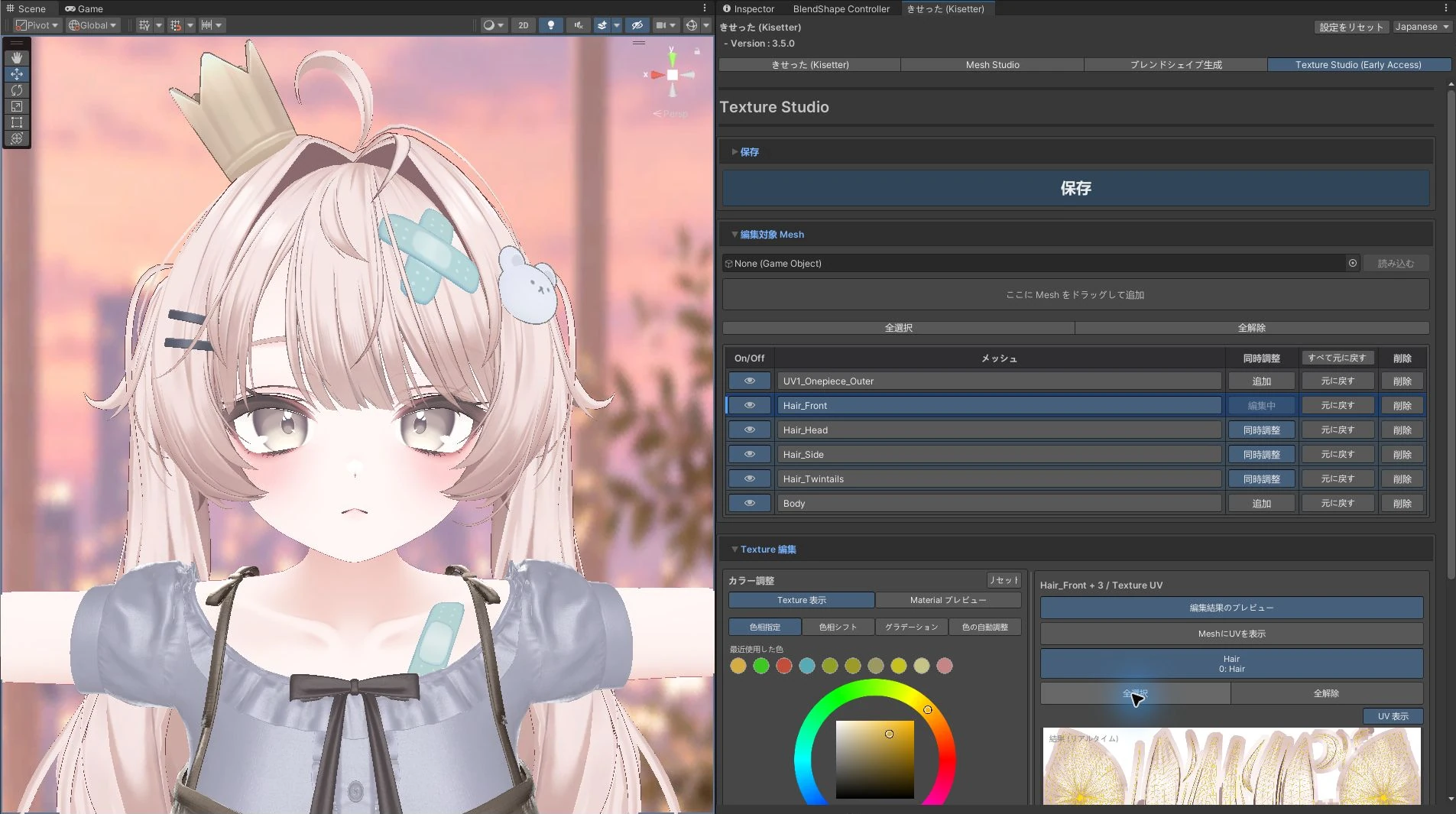
Changing the main mesh clears the Included meshes, so choose the main mesh first.
The On/Off eye icon activates or deactivates the mesh object.
Use the mesh name and Included column to choose which meshes to edit.
Select UV regions#
UVs are connected sections of a mesh laid out on the texture.
Color edits apply to the selected UV regions.
| Action | Result |
|---|---|
| Click an island | Toggle that island's selection. |
| Drag in the UV view | Select a region with a box. |
| Hold Shift / Ctrl while selecting | Add to / remove from the selection. |
| Select All | Select UV regions across all editing meshes and texture slots. |
| Deselect All | Clear UV selections across all editing meshes and texture slots. |
| Show UV | Show UV lines over the texture. |
| Visualize UV on Mesh | Show UV lines on meshes in the Scene view. |
Select and recolor individual parts#
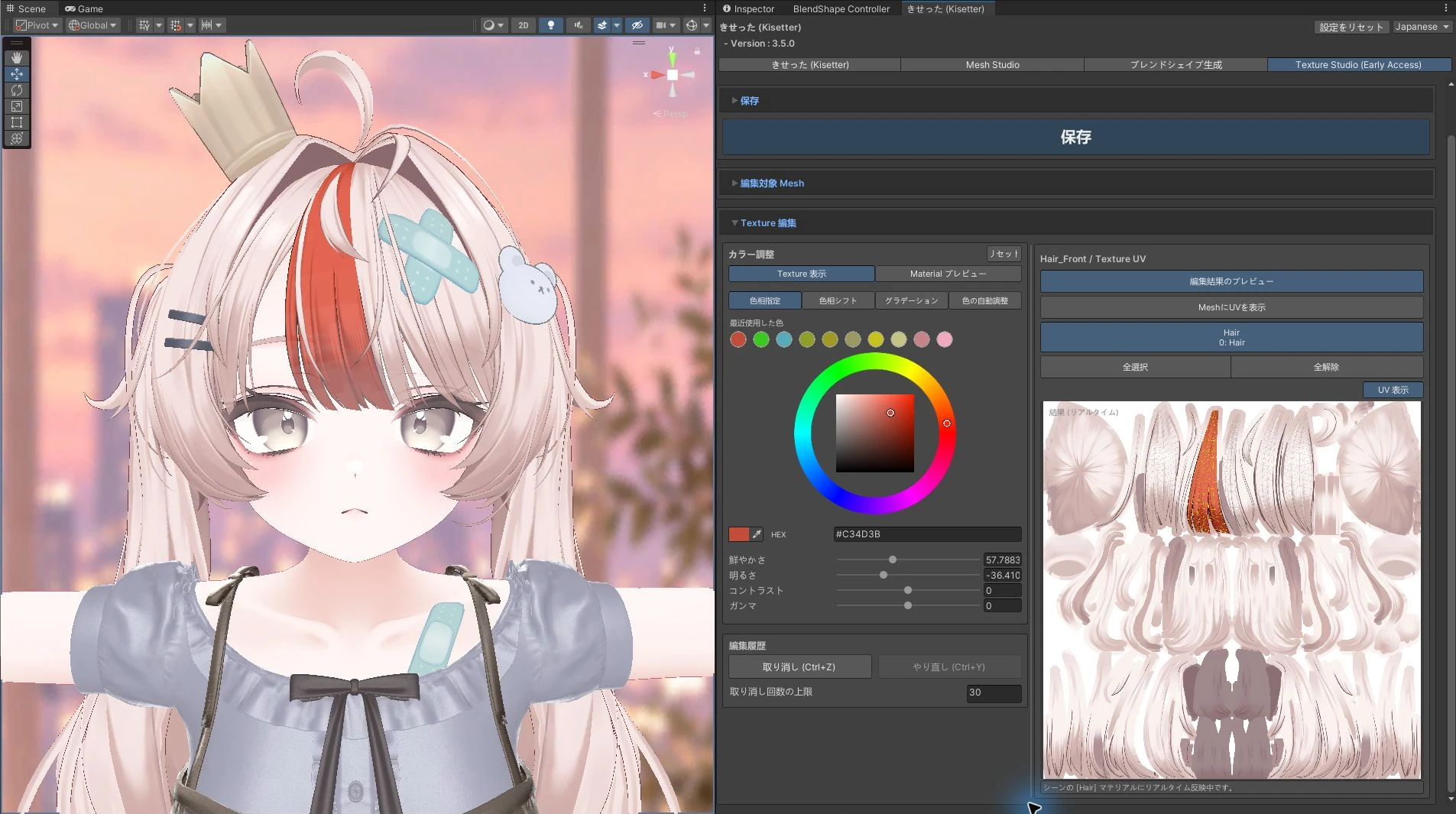
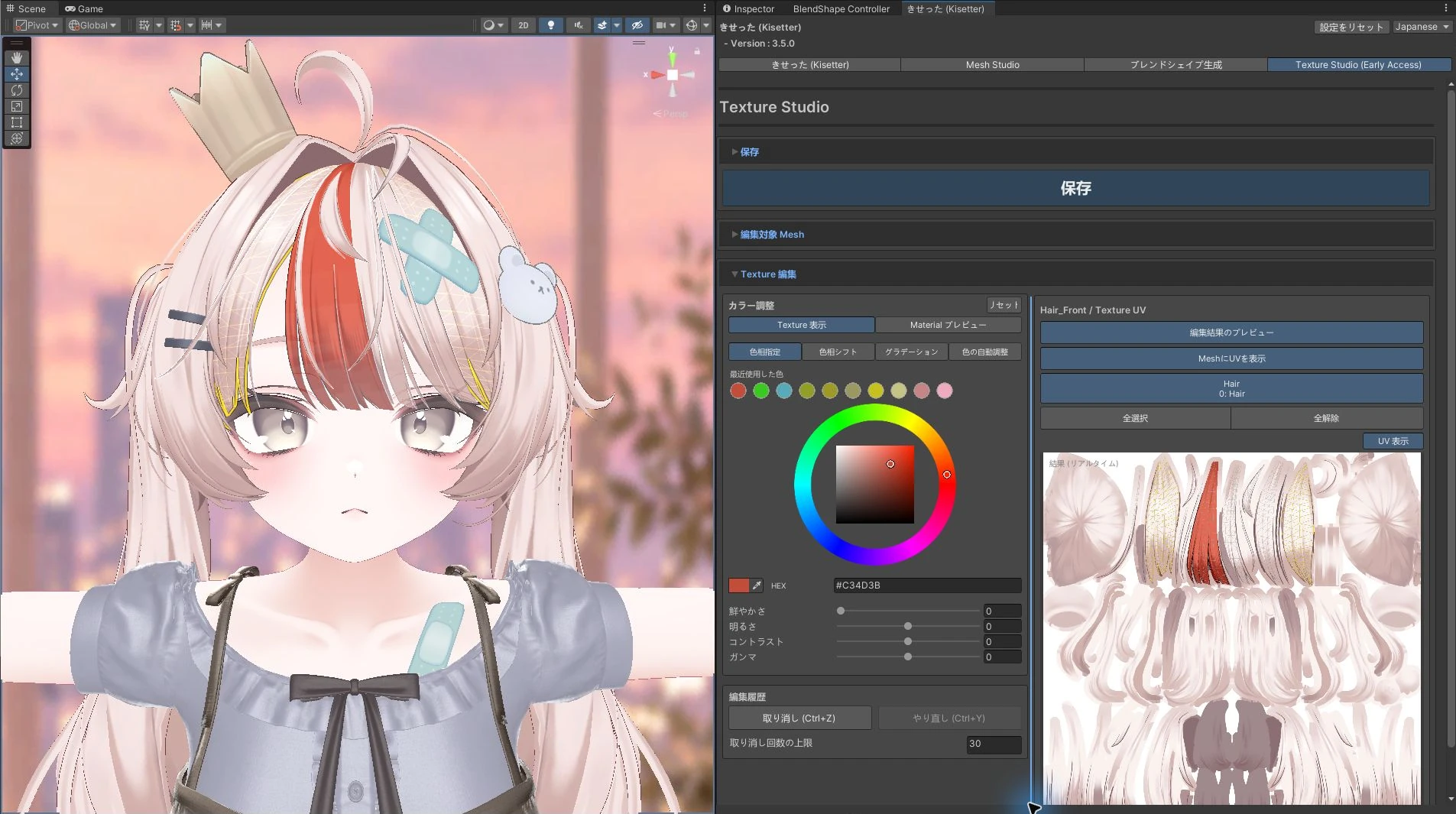
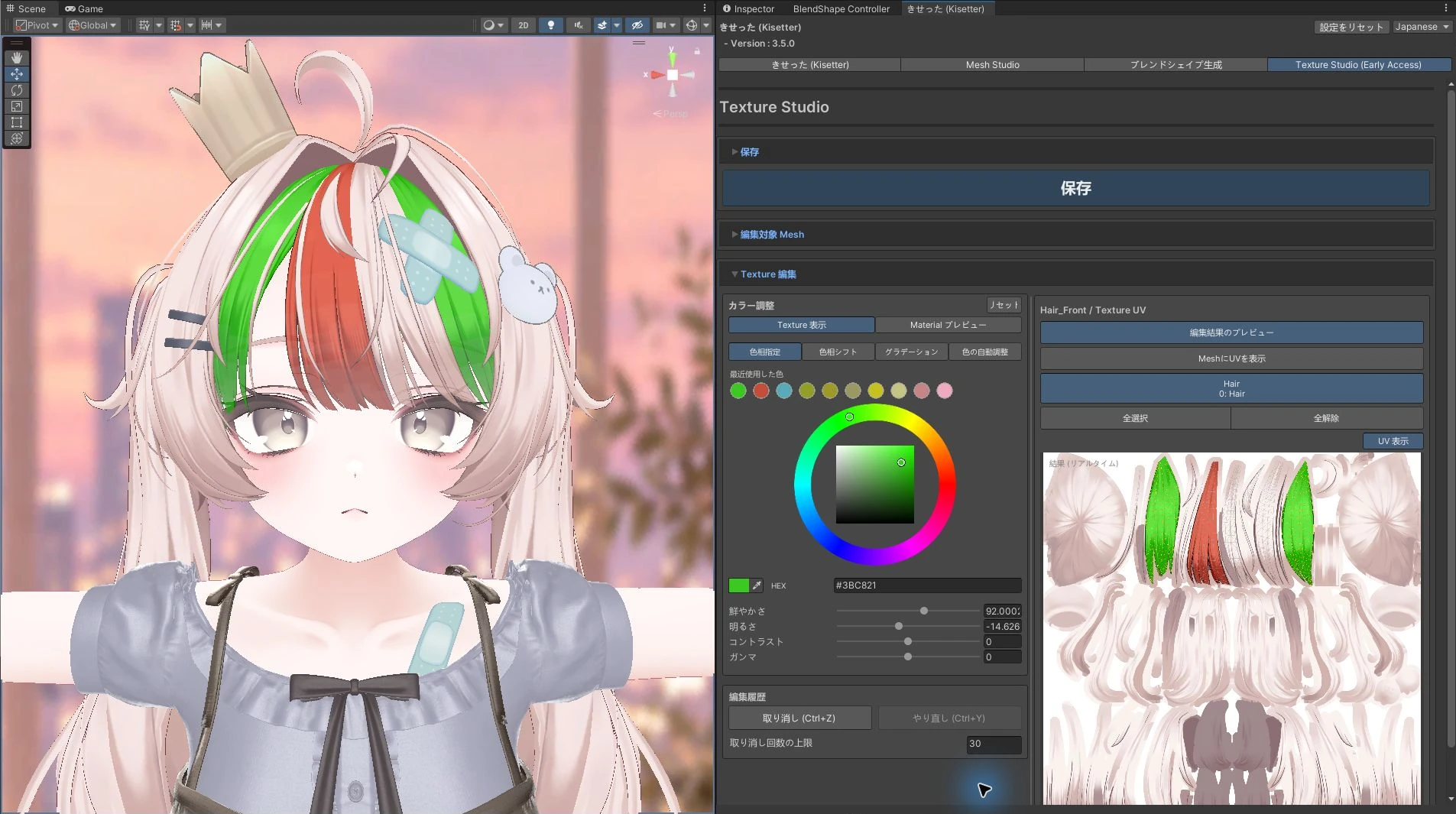
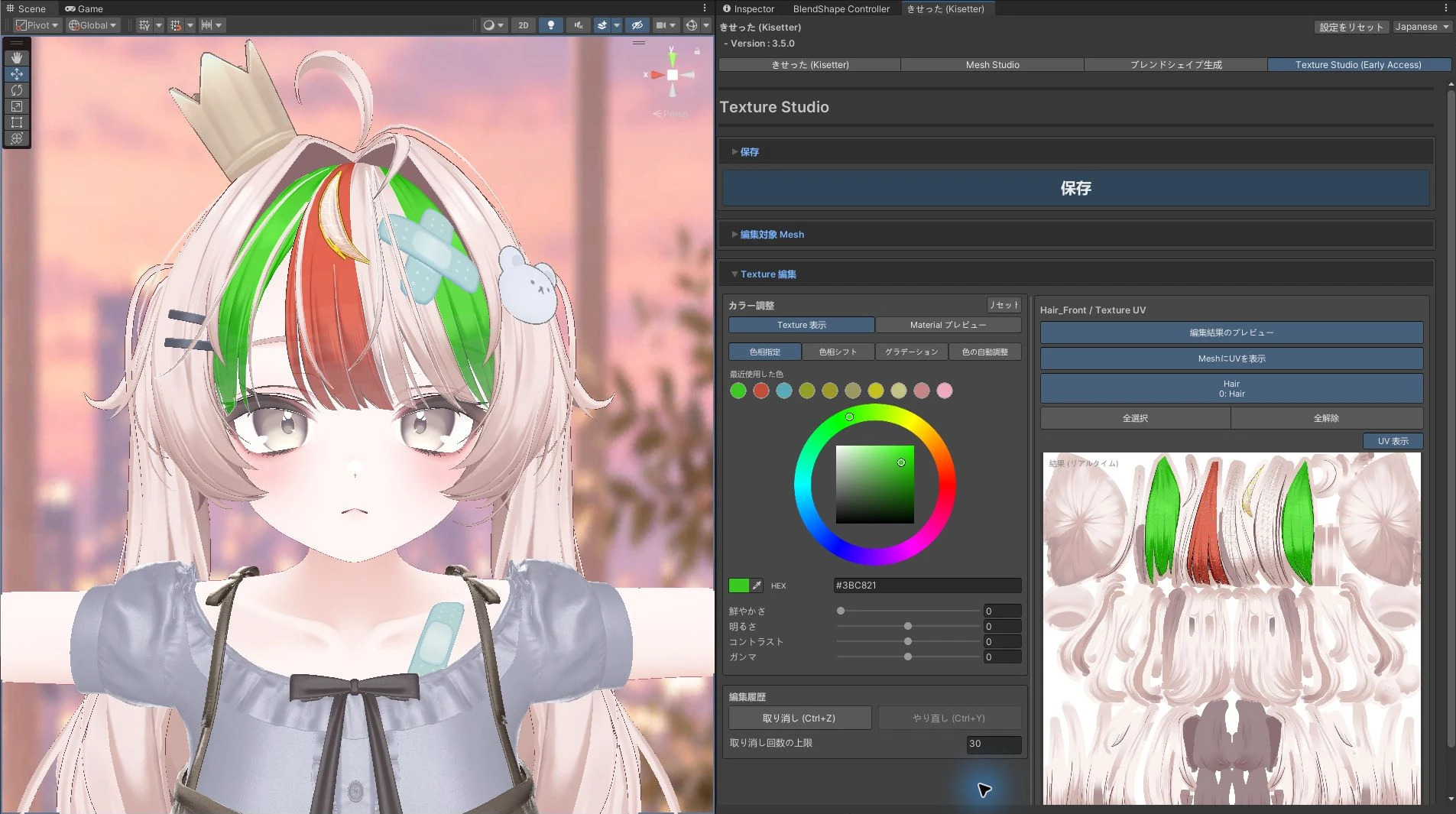
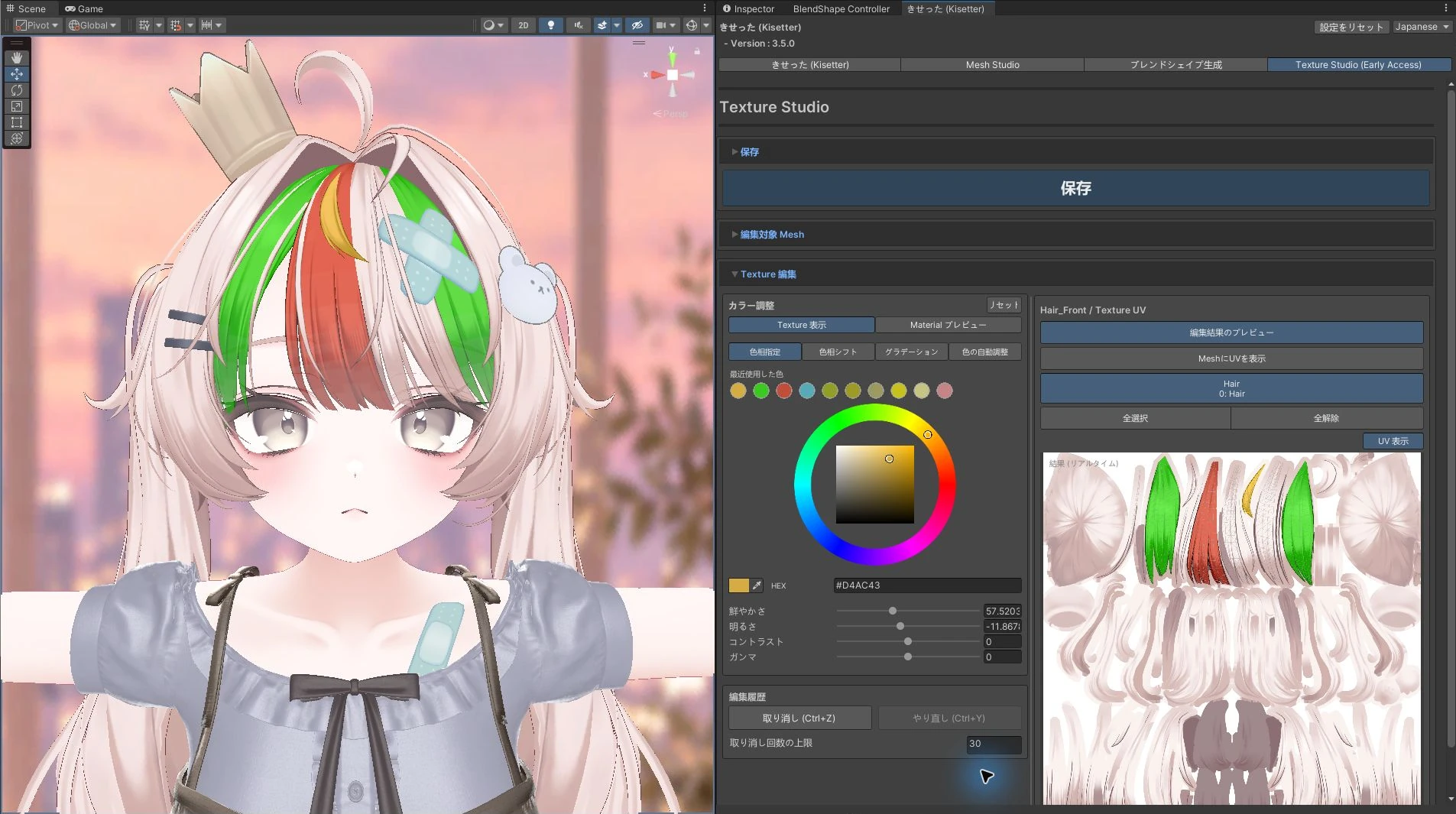
You can select separate UV regions within a single mesh to give each part a different color.
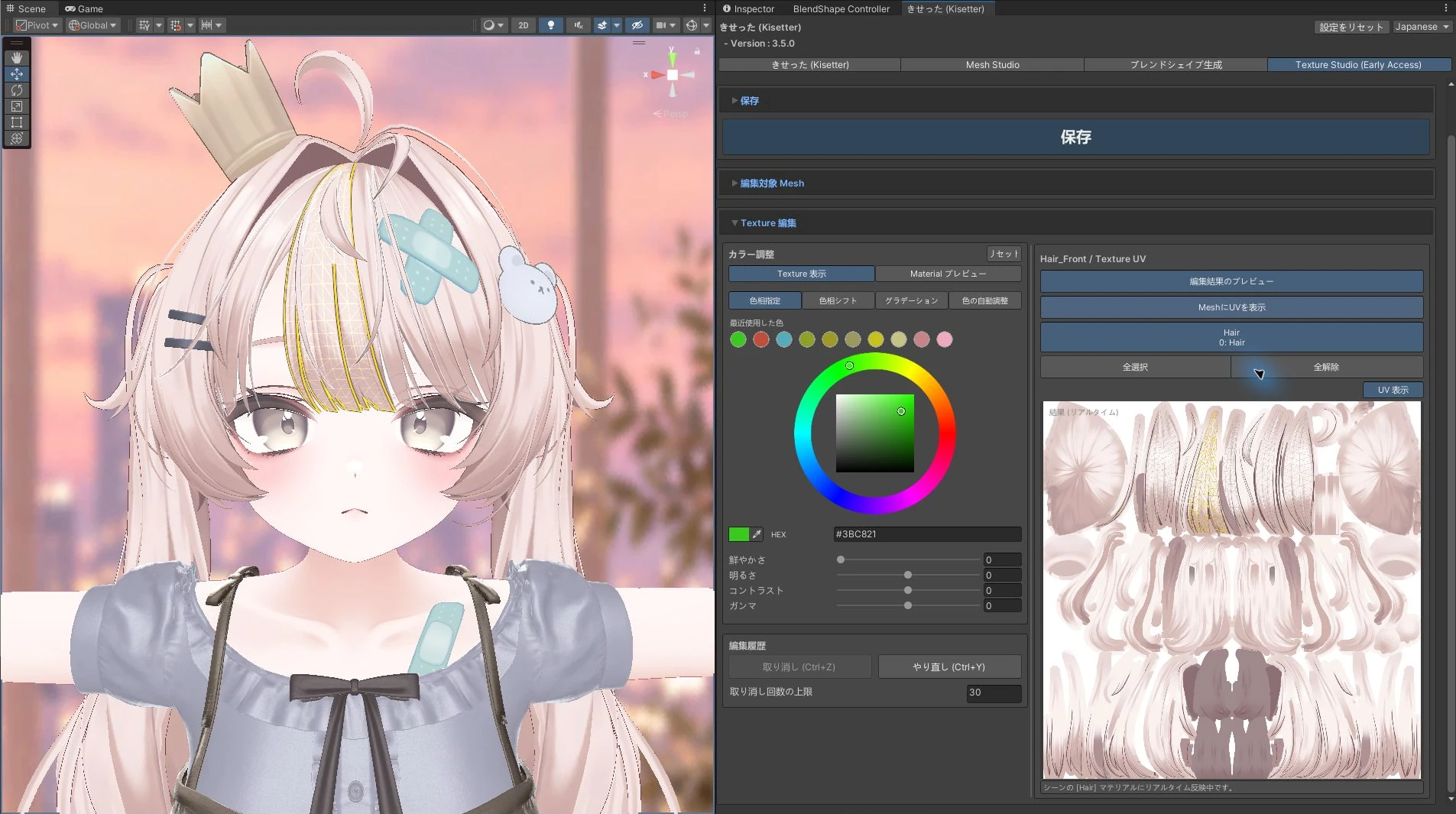
The examples below show the fringe adjusted one part at a time.
- Keep only the fringe mesh as the editing target and click Deselect All.
- Select the desired islands in Texture UV on the right. Turn on Visualize UV on Mesh to check the selection using the yellow lines in the Scene view.
- You can also click a part directly in the Scene view to select it.
- Choose a color in Set Hue. Turn off Visualize UV on Mesh when checking the resulting color.
- Before moving to the next section, click Deselect All and select the new region. Previous colors remain applied while you adjust the newly selected region separately.
Example: adjust only the eyes#
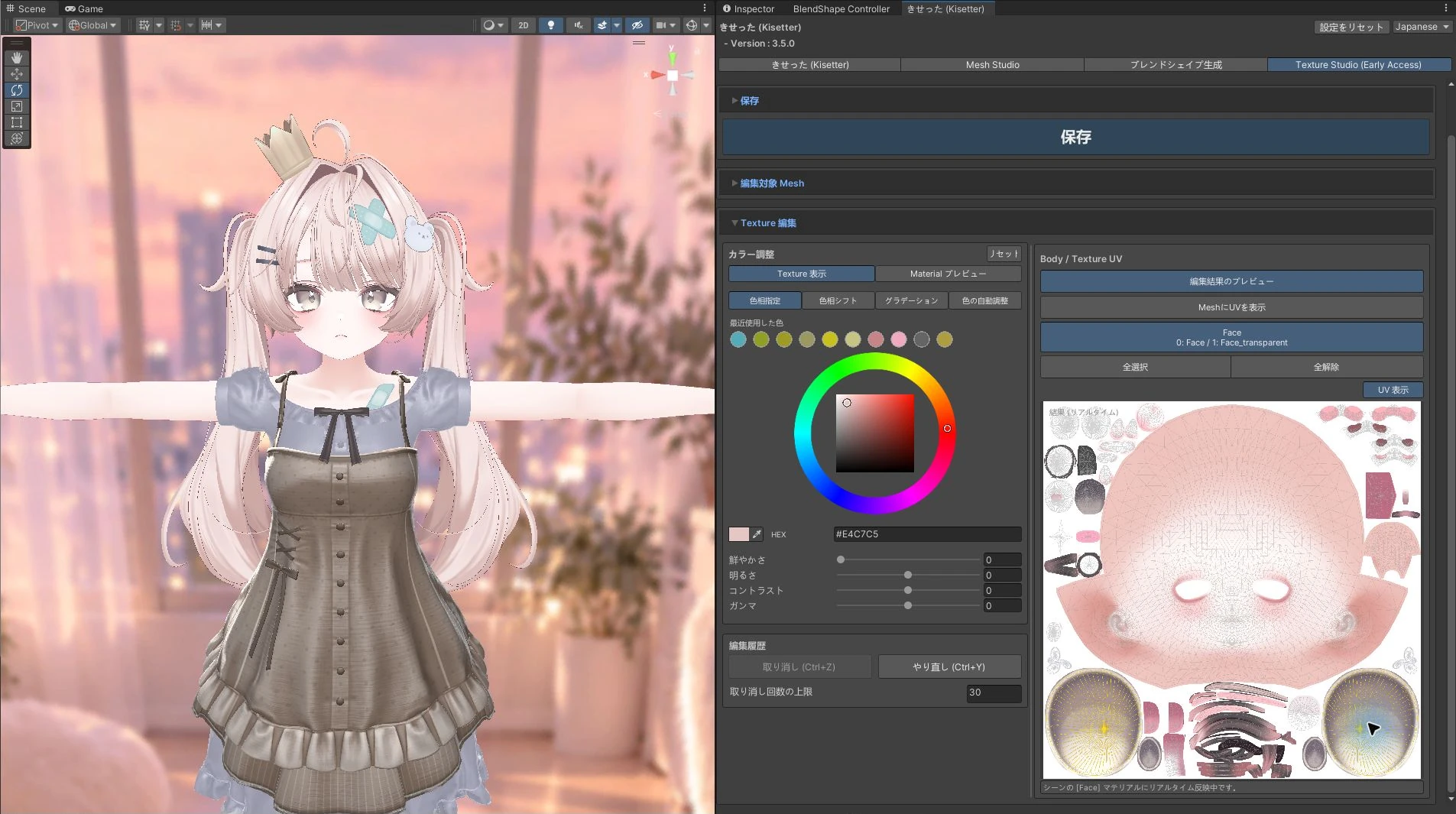
- Select the mesh containing the eyes as the main target.
- Open the texture tab containing the eyes and click Deselect All.
- Click each eye's UV island as shown below. Confirm that only those two regions have yellow UV lines.
- Adjust their color while leaving the skin and eyelashes unchanged.
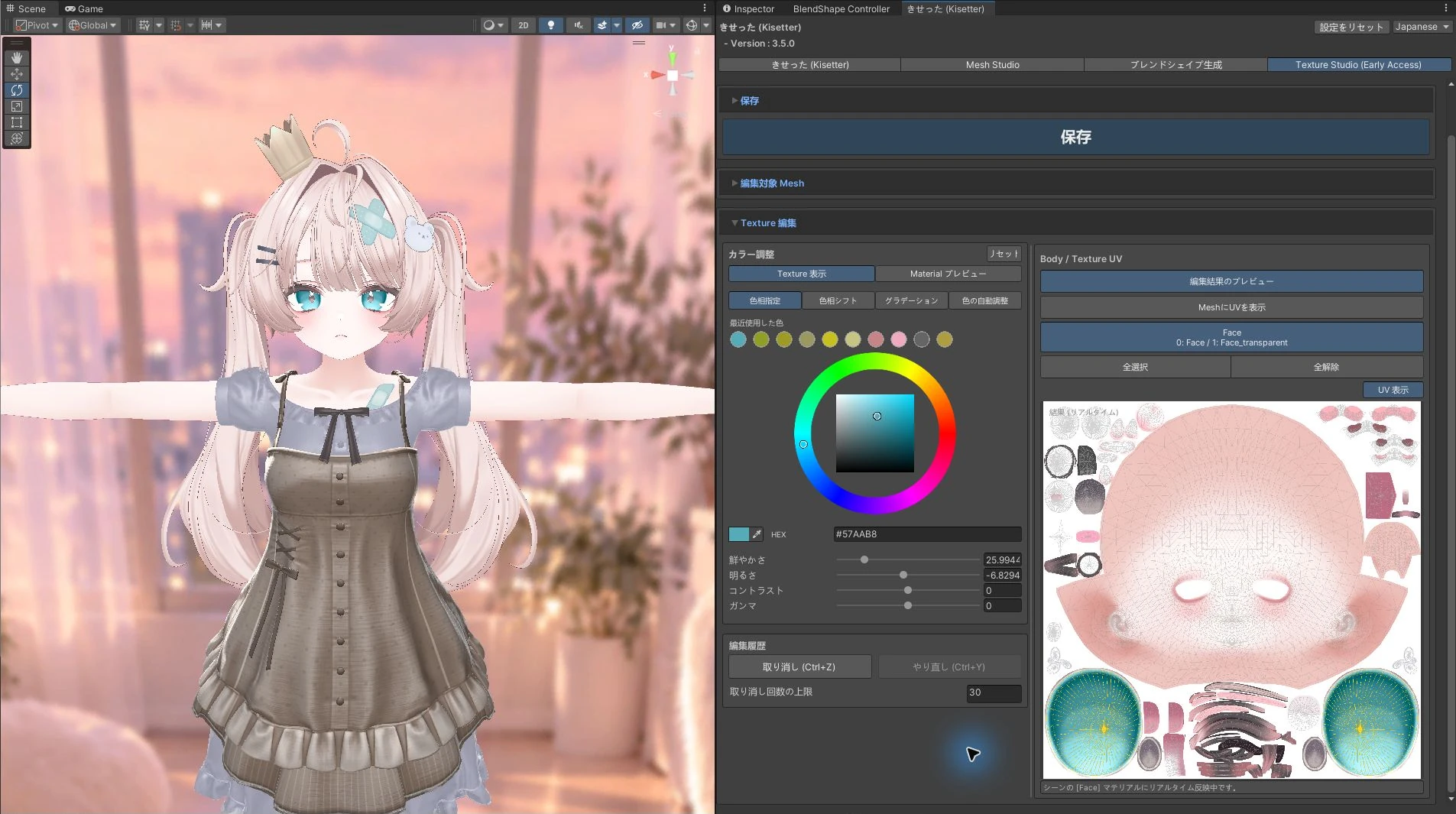
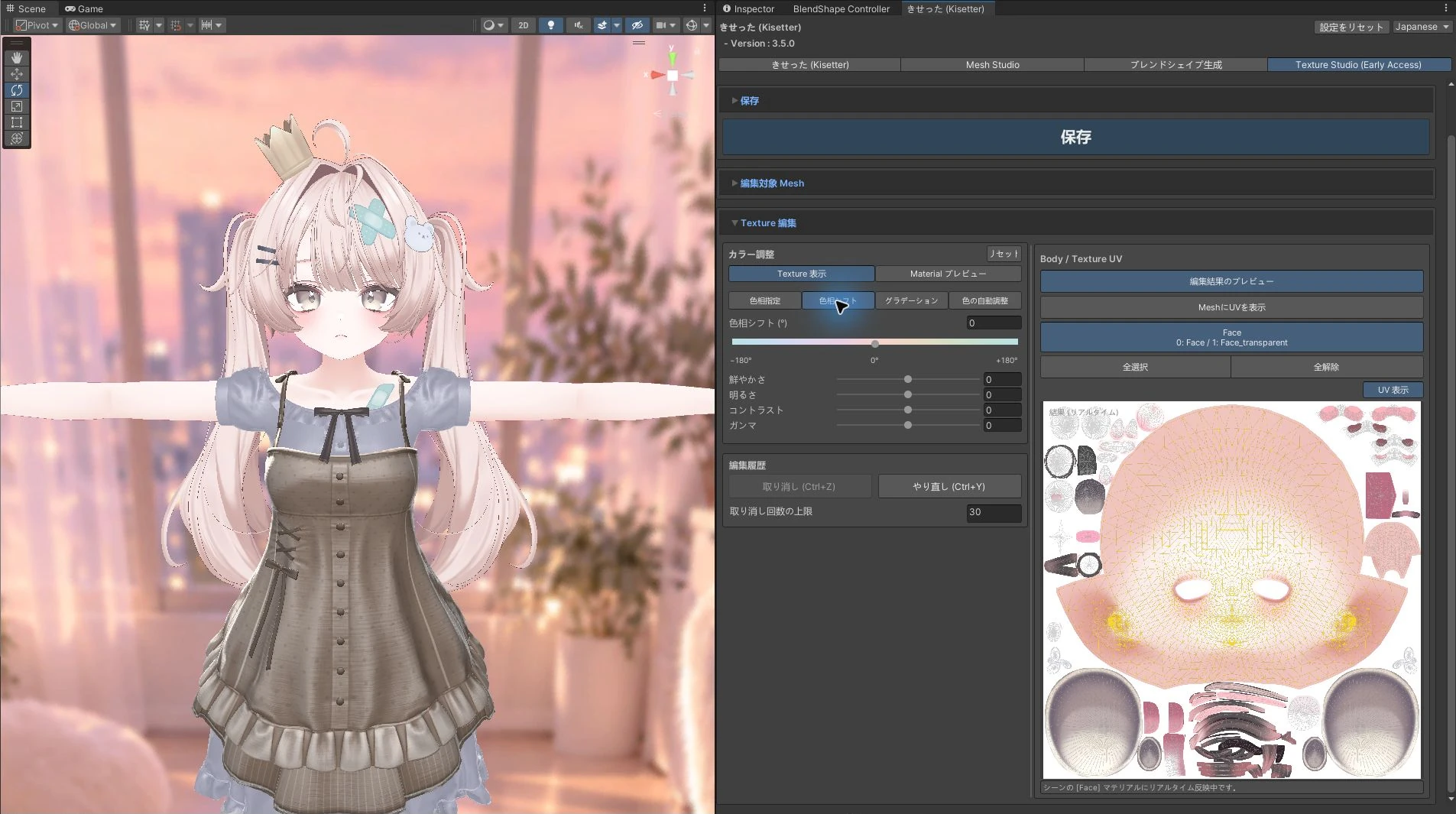
Use the same steps to select the facial skin island. The image below shows the selection before recoloring. If the body skin uses a separate mesh or texture, adjust that region separately.
[3] Adjust color and tone#
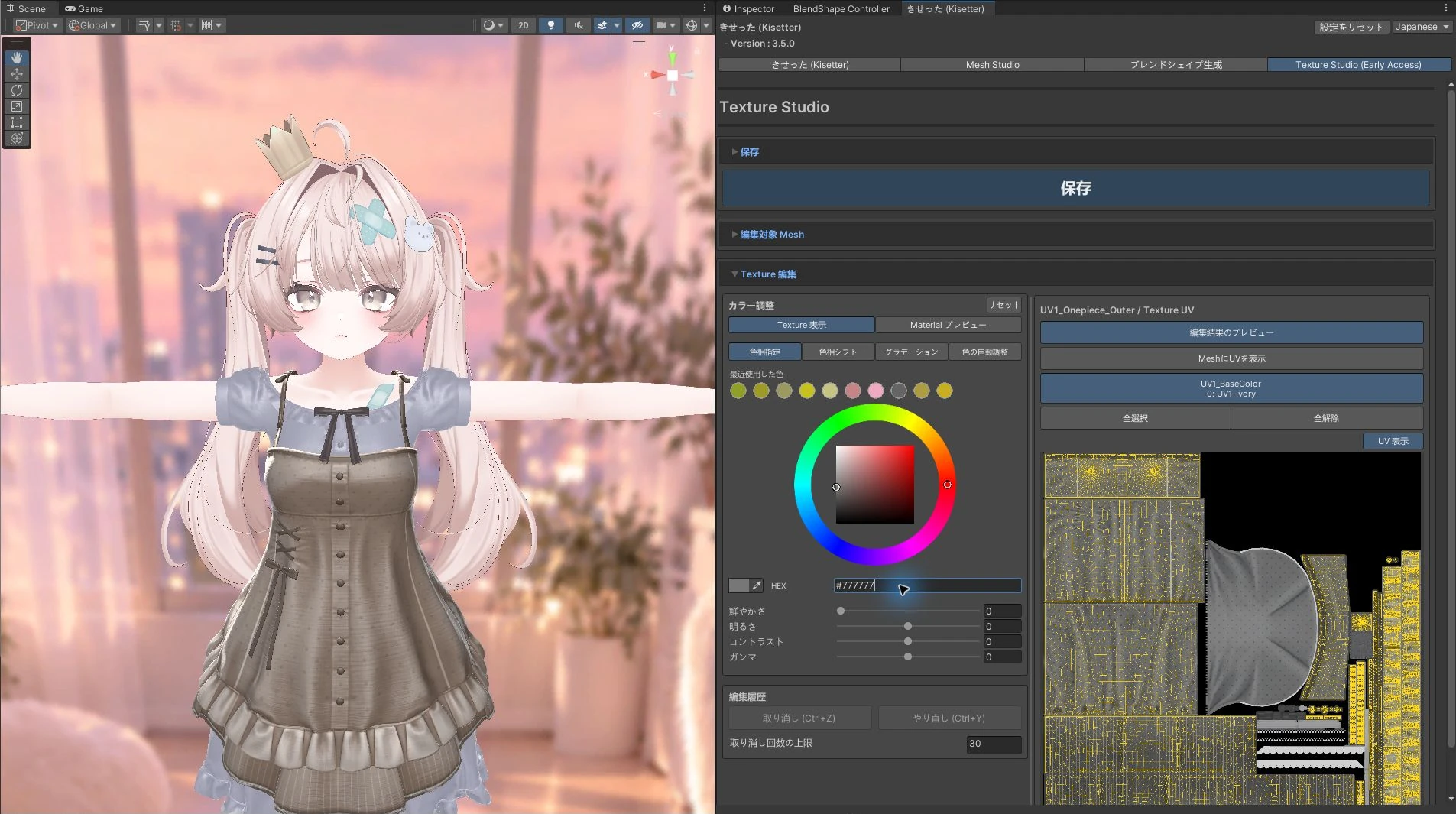
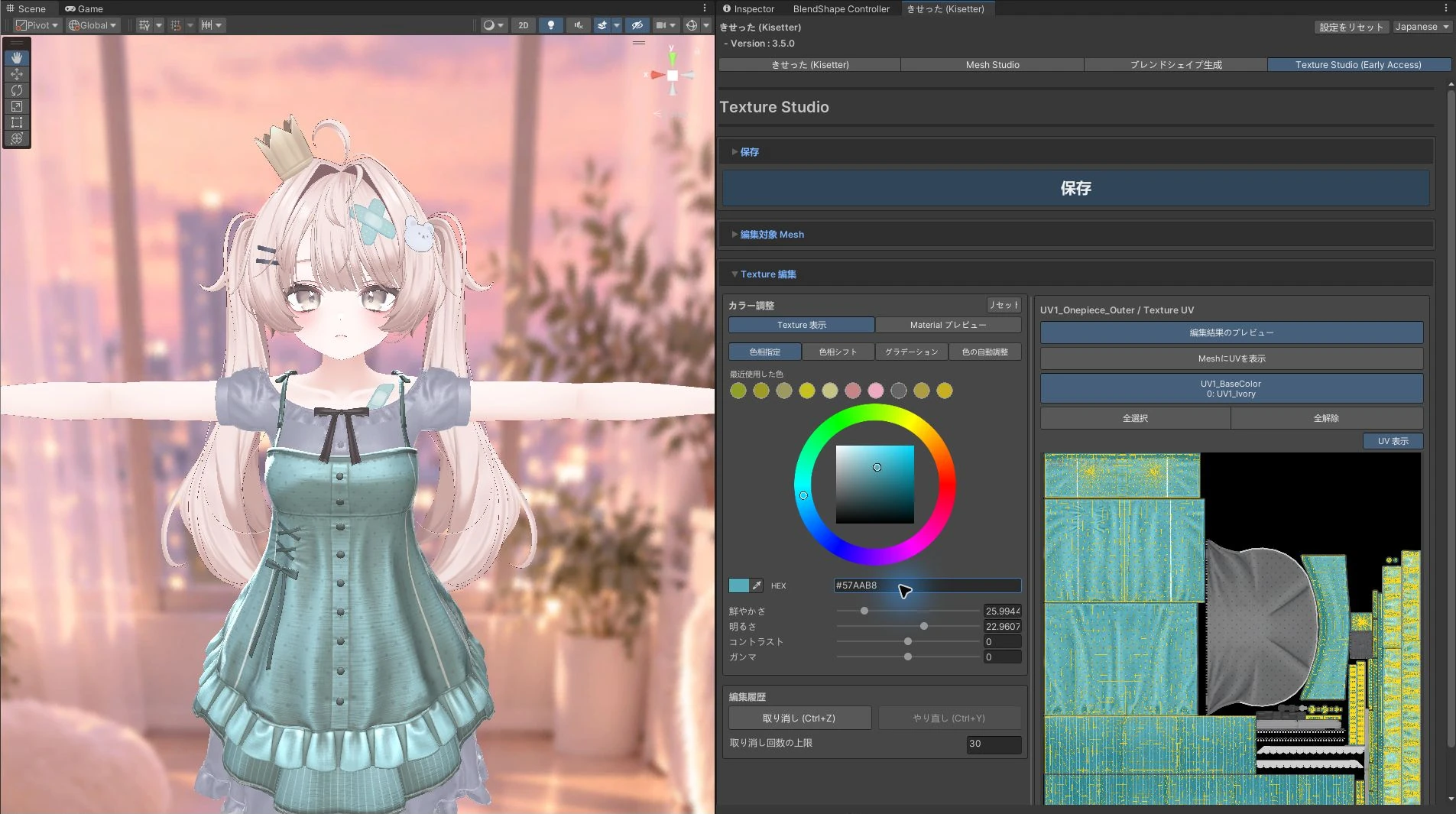
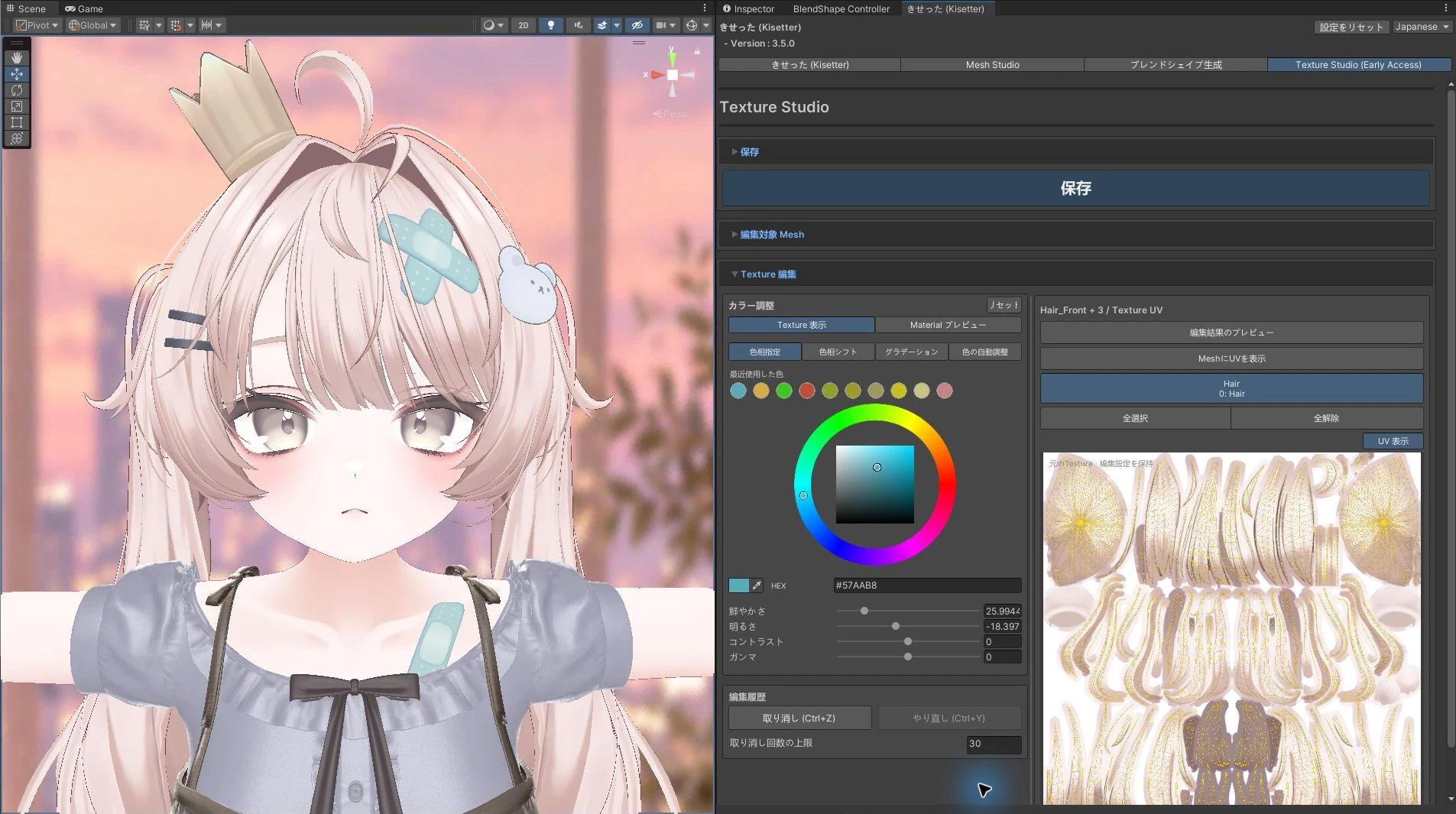
Choose a color or shift existing hues, then adjust intensity, brightness, contrast, and gamma.
This example changes a beige outfit to teal.
View instructions and outfit / hair examples →
[4] Create a gradient#
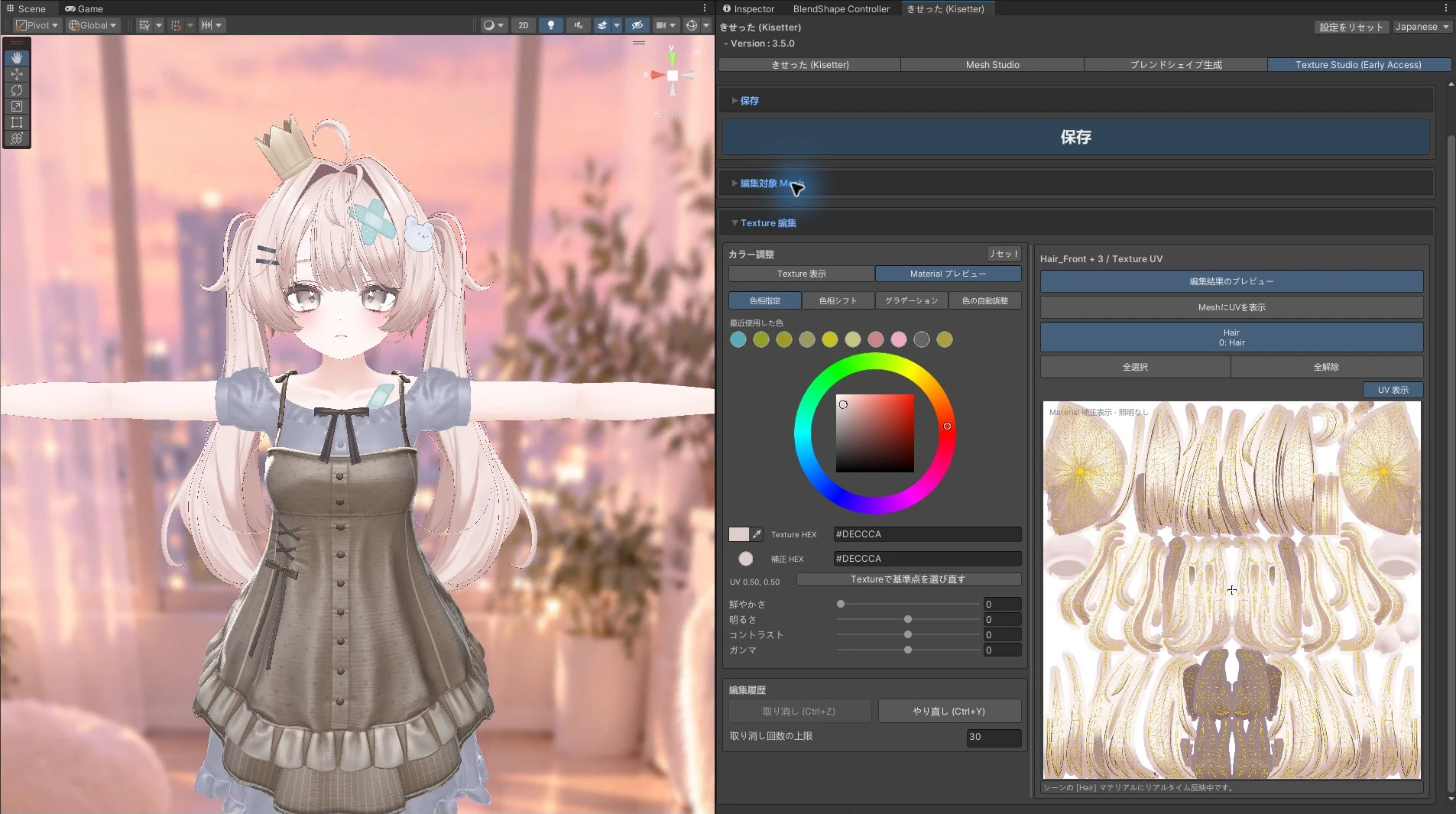
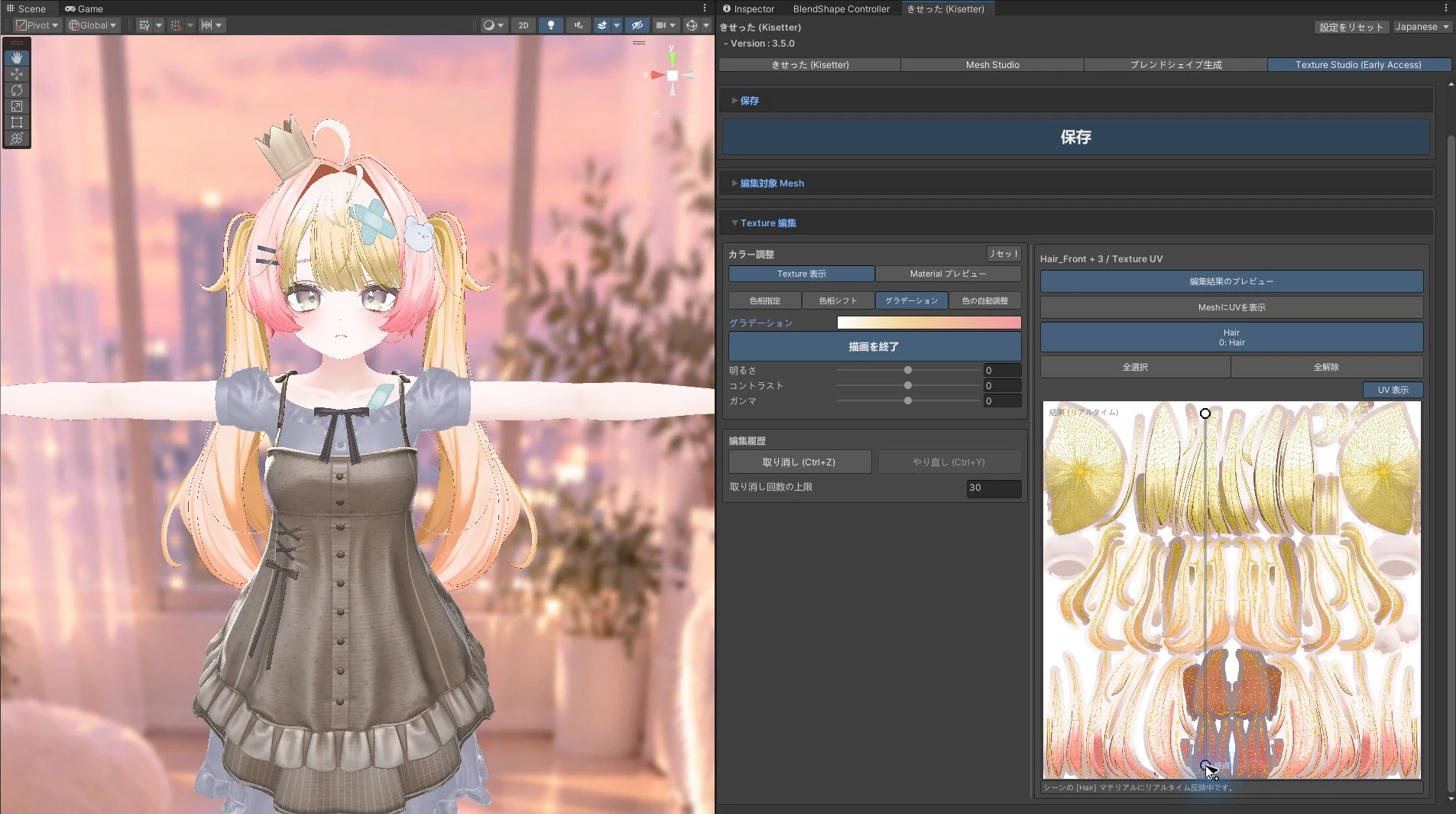
Apply a gradient along the direction and length of a line drawn in UV space.
This example adds a white, yellow, and pink gradient to the hair.
View instructions and outfit / hair examples →
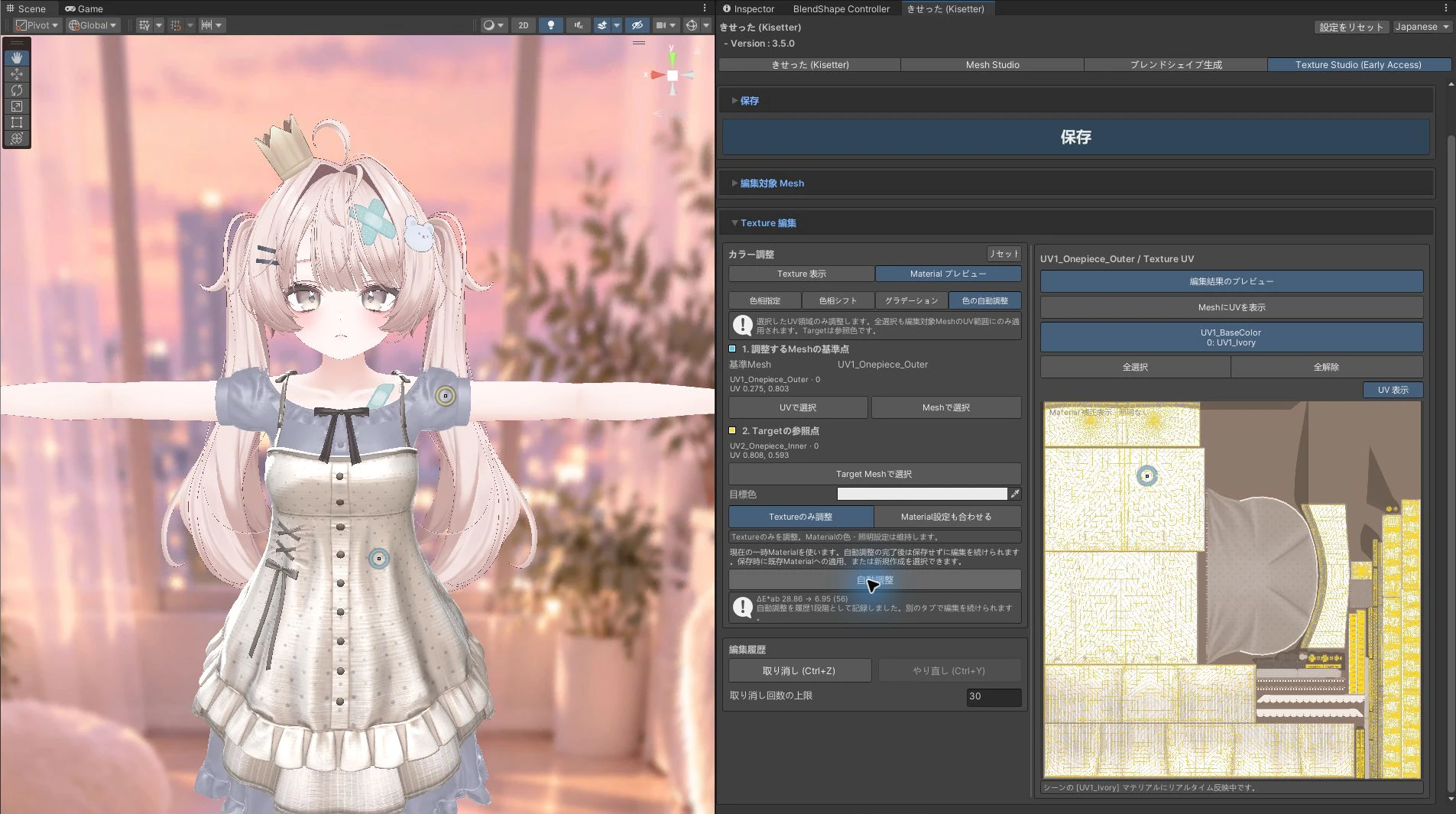
[5] Adjust colors automatically#
Automatically adjust selected regions toward a reference color picked on another mesh.
This example brightens the outfit texture using the sleeve as a reference.
View instructions and outfit / hair examples →
[6] Preview and undo#
Compare with the original#
Turn off Preview Edited Result to show the original state of registered meshes. Edits are retained; turn it back on to see the result again.
History and restoring the original#
| Control | Result |
|---|---|
| Undo / Ctrl+Z | Reverse the latest editing step. |
| Redo / Ctrl+Y | Reapply an undone step. |
| Maximum undo steps | Set the history capacity: default 30, range 1–100. |
| Revert on a mesh row | Restore that mesh's UV regions across all its texture slots. |
| Revert All | Restore all edits to the original state. |
Overlapping UV regions on a shared texture can affect other meshes, so check the Scene after restoring.
[7] Save textures and materials#
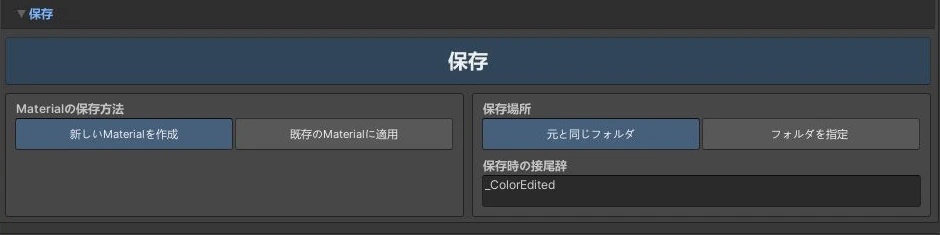
- Expand Save.
- Choose the Material Save Mode.
- Choose a Save location and Save Suffix.
- Click Save. Edited textures are saved as PNGs and connected to materials using the chosen method.
- Follow the prompt to continue editing or finish.
| Setting | Use |
|---|---|
| Create New Material | Create a separate material and apply it to the edited mesh. Use this for a color variant. |
| Apply to Existing Material | Update the existing material. Other objects sharing it may also change. |
| Same folder as original | Save in the same folder as the original assets. |
| Choose folder | Select a destination under the project's Assets directory. |
Saving makes the result the baseline for further edits and clears the previous edit history.