
Create a gradient
Draw a line in the UV view to apply gradients to outfits and hair.
きせった (Kisetter) 3.5.0 documentationFor mesh and UV selection, previews, and saving, see the Texture Studio Guide.
[1] How to use it#
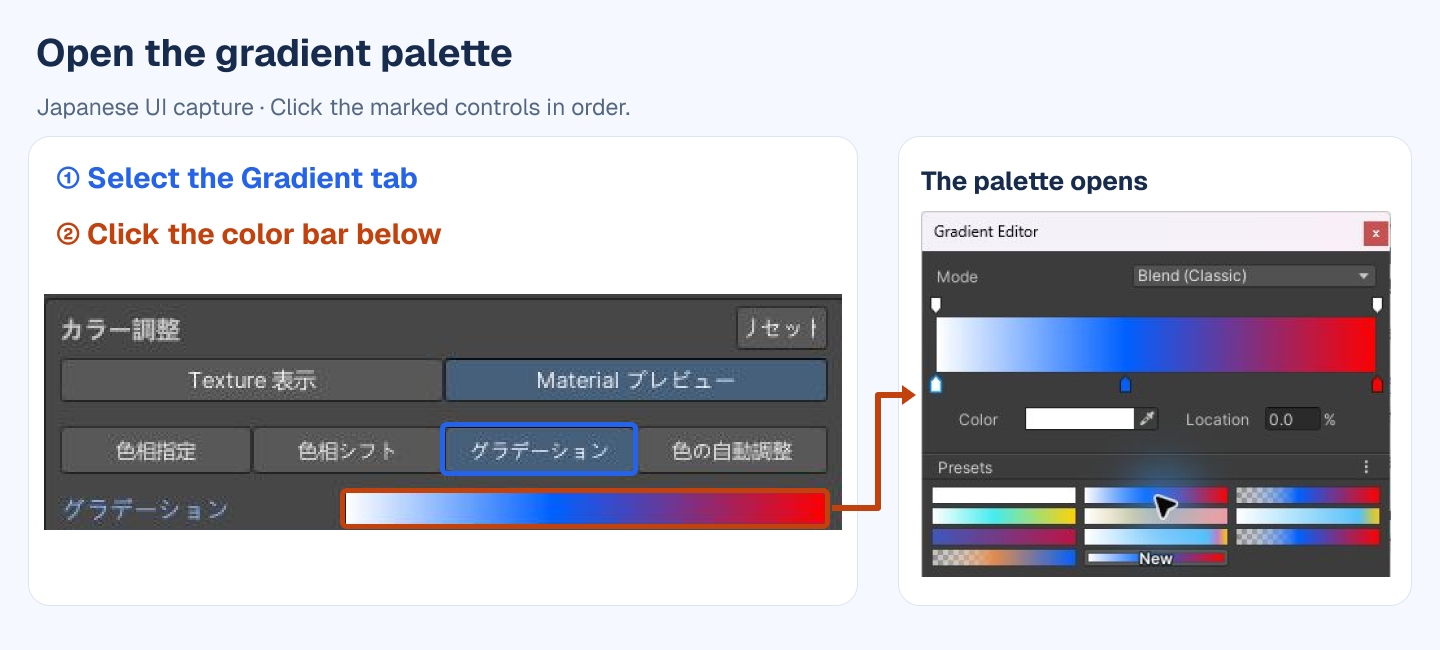
- Select meshes and UV regions, then open Gradient.
- Click the horizontal color bar below the tabs (②) to open the Gradient Editor. Set the colors and their positions, or choose a preset.
- Click New under Preset to save the current colors as a preset.
- Close the Gradient Editor and click Draw on UV.
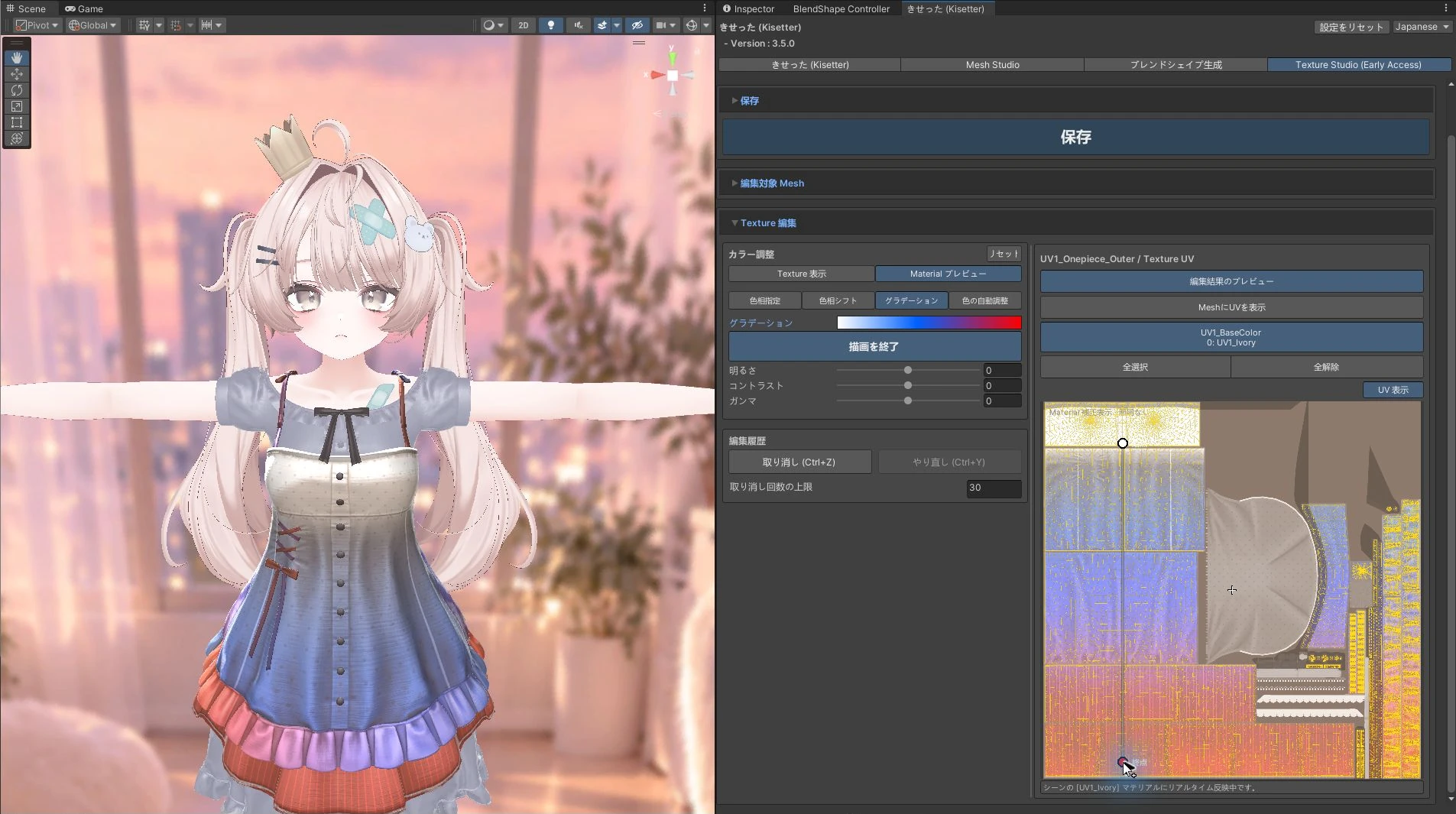
- Drag across the area where you want to draw the gradient in the UV view on the right.
- Check the Scene view, then click Finish Drawing.
[2] Outfit and hair examples#
Outfit example — a vertical white, blue, and red gradient
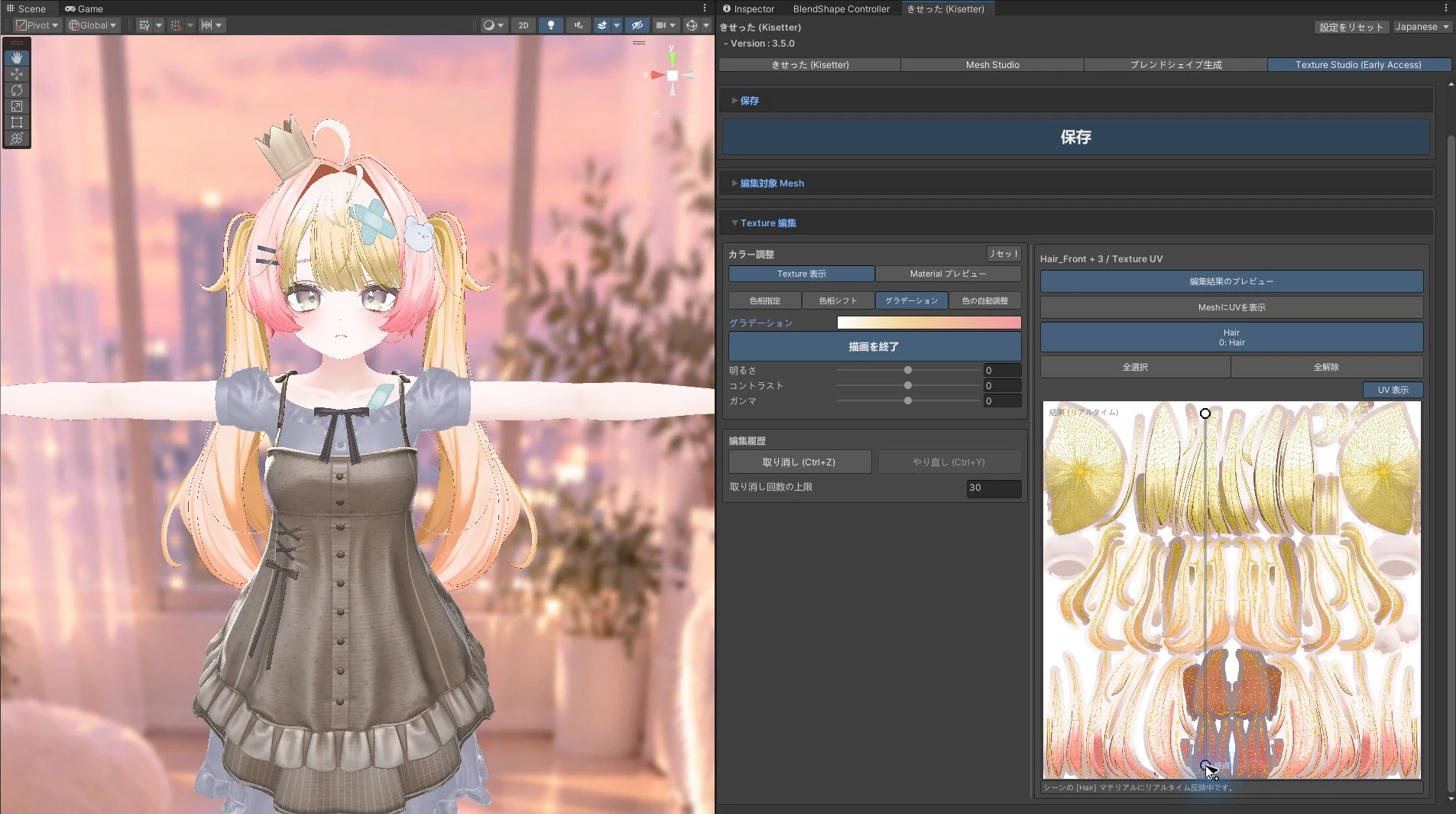
Hair example — a white, yellow, and pink gradient
[3] Things to check#
Gradients follow UV positions. If roots and tips do not run in the same direction in the UV layout, different hair sections receive different color distributions. Select individual islands and work on them separately when needed.
Dragging again during drawing changes the current line. After finishing, drawing again applies a new gradient over the existing result. Escape or right-click cancels only the current drag; use Undo to reverse a completed edit.
Still need help? Ask in the Discord Help channel ↗