
Relax
Even out vertices and soften sharp bends.
きせった (Kisetter) 3.4.1 documentationRelax evens out vertex spacing and softens sharp bends. It does not flatten the entire brush area onto a single plane.
[1] How to use it#
- Select Relax.
- Adjust radius and strength, then brush the uneven area gradually.
- Check the width and thickness of straps, folds, and connections to decorations.
[2] Brush settings#
| Option | Description |
|---|---|
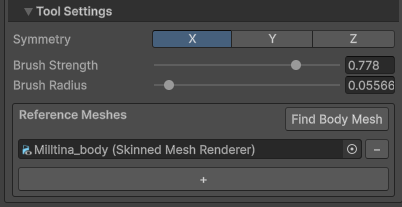
| Brush Radius | Set the area around the cursor in which to even out vertices and soften bends. |
| Brush Strength | Set how strongly the brush smooths the surface using neighboring vertices. Apply it gradually while checking the shape of straps and folds. |
| Symmetry | Enable X / Y / Z to apply the operation to the opposite side relative to Root Object. Multiple axes can be enabled together. |
| Input | Action |
|---|---|
| Shift + mouse wheel | Adjust brush radius. |
| Ctrl + Shift + mouse wheel | Adjust brush strength. |
| Shift + mouse wheel with Caps Lock on | Adjust brush strength. |
| Esc | Cancel the current brush stroke. |
Use these shortcuts in the Scene View. On macOS, use Command instead of Ctrl.
[3] Reference meshes#
Use Reference Meshes to specify a surface to follow while smoothing. The brush uses a nearby matching reference surface when available; otherwise, it uses the surrounding shape of the clothing itself.
- Check the body mesh automatically found in the clothing’s parent hierarchy.
- Click Find Body Mesh to search again for a body mesh on a Humanoid Avatar in that hierarchy.
- Use + to add a reference and − to remove one. Manually added meshes are retained during automatic discovery.
The Main Mesh itself and renderers sharing its mesh data are excluded from the references.
Relax does not show a Surface Gap input. When a nearby reference surface is found, it uses the gap set through the other brushes.
[4] Check the result#
Relax can change width or thickness, so start with a low strength. Check connections between straps and decorations, along with any folds you want to keep.
[5] Save your edits#
After editing, recalculate weights and realign PhysBones if needed. See saving and mesh separation to save the result as a Mesh or BlendShape.