Adjust colors automatically
Use another mesh as a reference to match colors in selected regions automatically.
きせった (Kisetter) 3.5.0 documentationFor mesh and UV selection, previews, and saving, see the Texture Studio Guide.
[1] Pick points and adjust#
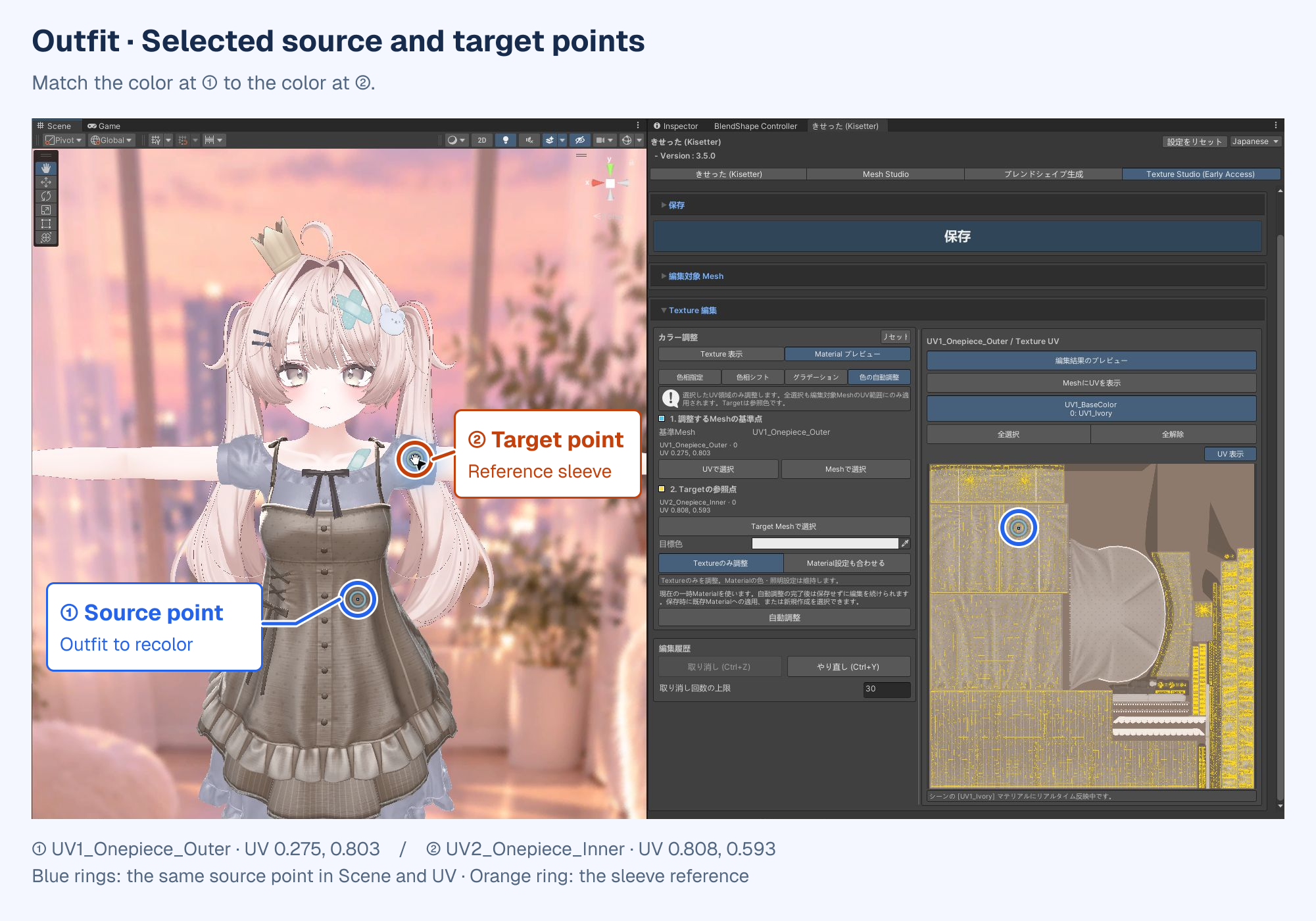
① Source point is on the mesh to recolor. ② Target point supplies the desired color from another mesh (Target).
The selected regions are adjusted to match the color at ① to the color at ②.
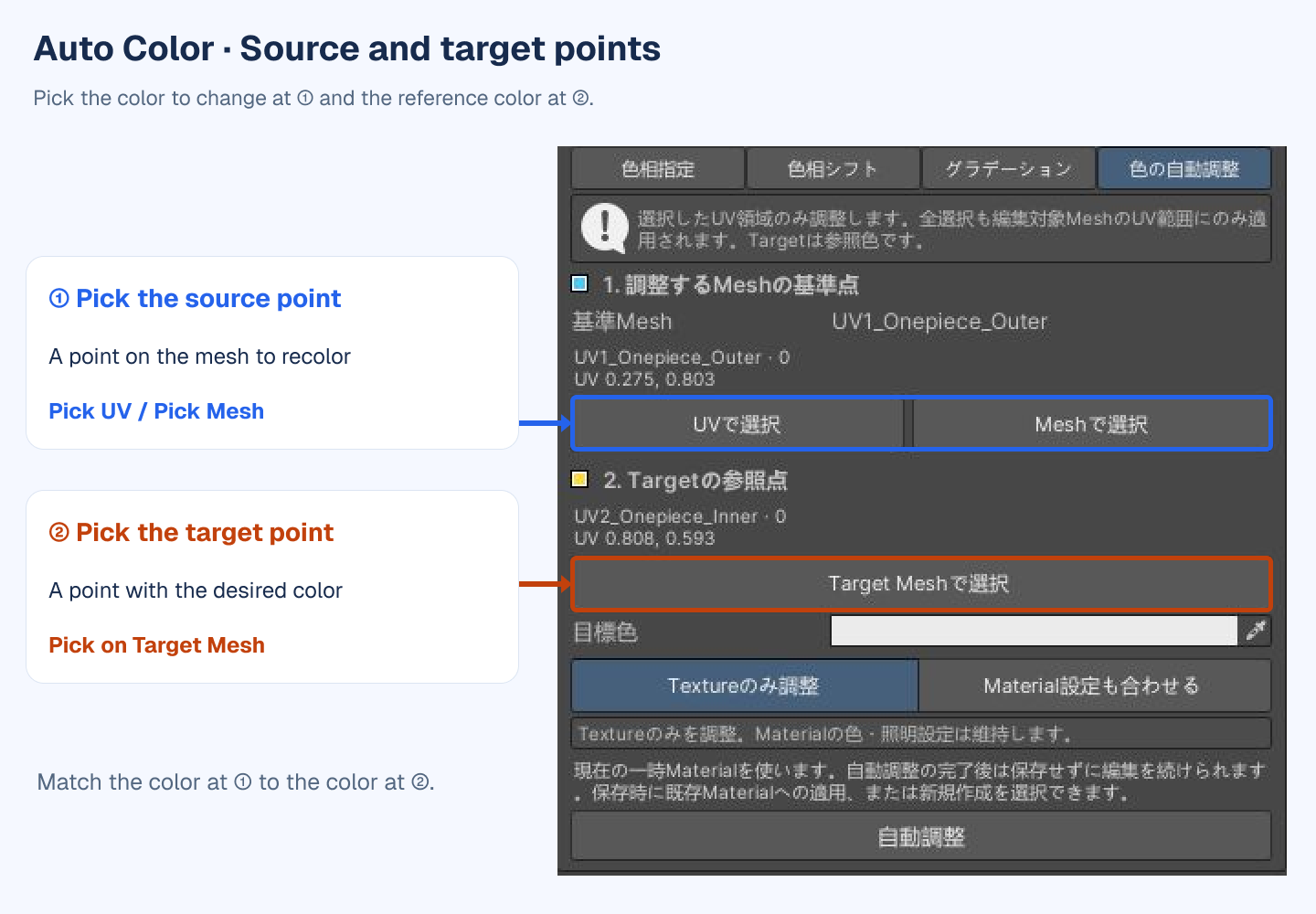
- Select the editing meshes and UV regions, then open Auto Color.
- Under 1. Point on an edited Mesh, click Pick UV or Pick Mesh.
- Click a point on the part you want to recolor in the UV or Scene view.
- Under 2. Target reference point, click Pick on Target Mesh and pick a point on another mesh in the Scene view that clearly shows the desired color.
- Avoid transparent areas and pattern edges.
- Check the mesh name, UV coordinates, and Target color, then choose an adjustment mode.
- Click Adjust automatically. Check the Scene and the result message when it finishes.
[2] Adjustment modes#
| Mode | Scope |
|---|---|
| Texture only | Adjust the texture in selected UV regions while keeping the material's color and lighting settings. |
| Match Material settings | Also match the reference material's color and lighting settings. Supported between materials using the same shader or lilToon shaders. Material settings affect the whole slot. |
[3] Adjustment examples#
Both examples use the sleeve color as the reference.
Outfit example — Texture only
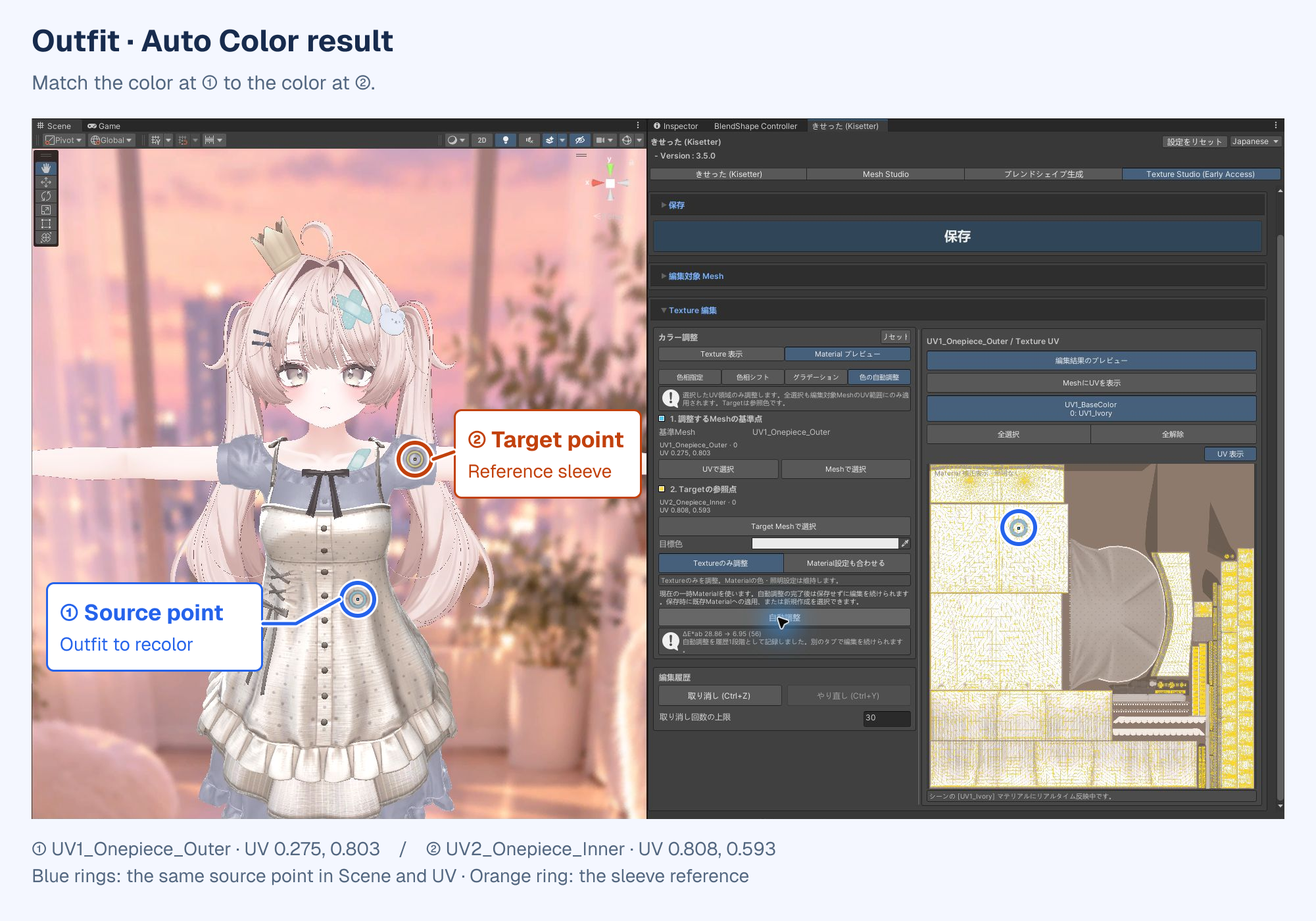
Hair example — Match Material settings
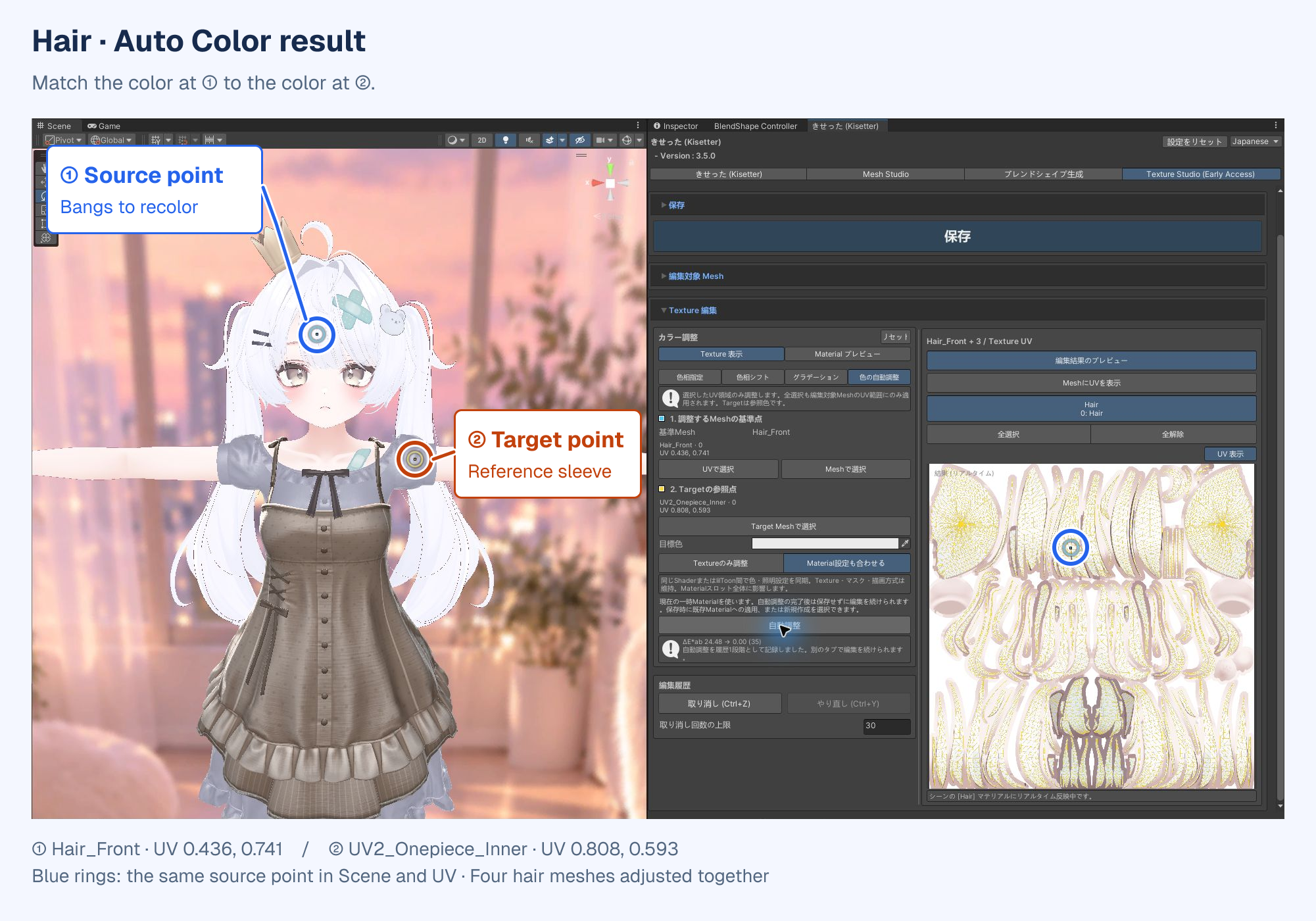
[4] Check the result#
Material settings and lighting can make texture colors look different in the Scene view. Check the final appearance there.
Still need help? Ask in the Discord Help channel ↗