Q&A and Troubleshooting
Usage conditions, frequently asked questions, and solutions to common errors.
きせった (Kisetter) 3.5.0 documentationUsage Guide#
🧩 What avatars can I use?#
You can use human-like avatars configured as Unity Humanoid avatars in a T Pose.
The avatar must include an Animator, have its bones configured correctly, and contain a torso Body Mesh that can be used as the body-shape reference.
If an avatar is not detected automatically as Humanoid, or if it contains multiple Body Meshes, disable automatic Body Mesh assignment and manually specify the Body Skinned Mesh Renderer to use as the reference. Use Mesh List to select only the meshes that should be processed.
🧍♂️ Can I use an A Pose avatar?#
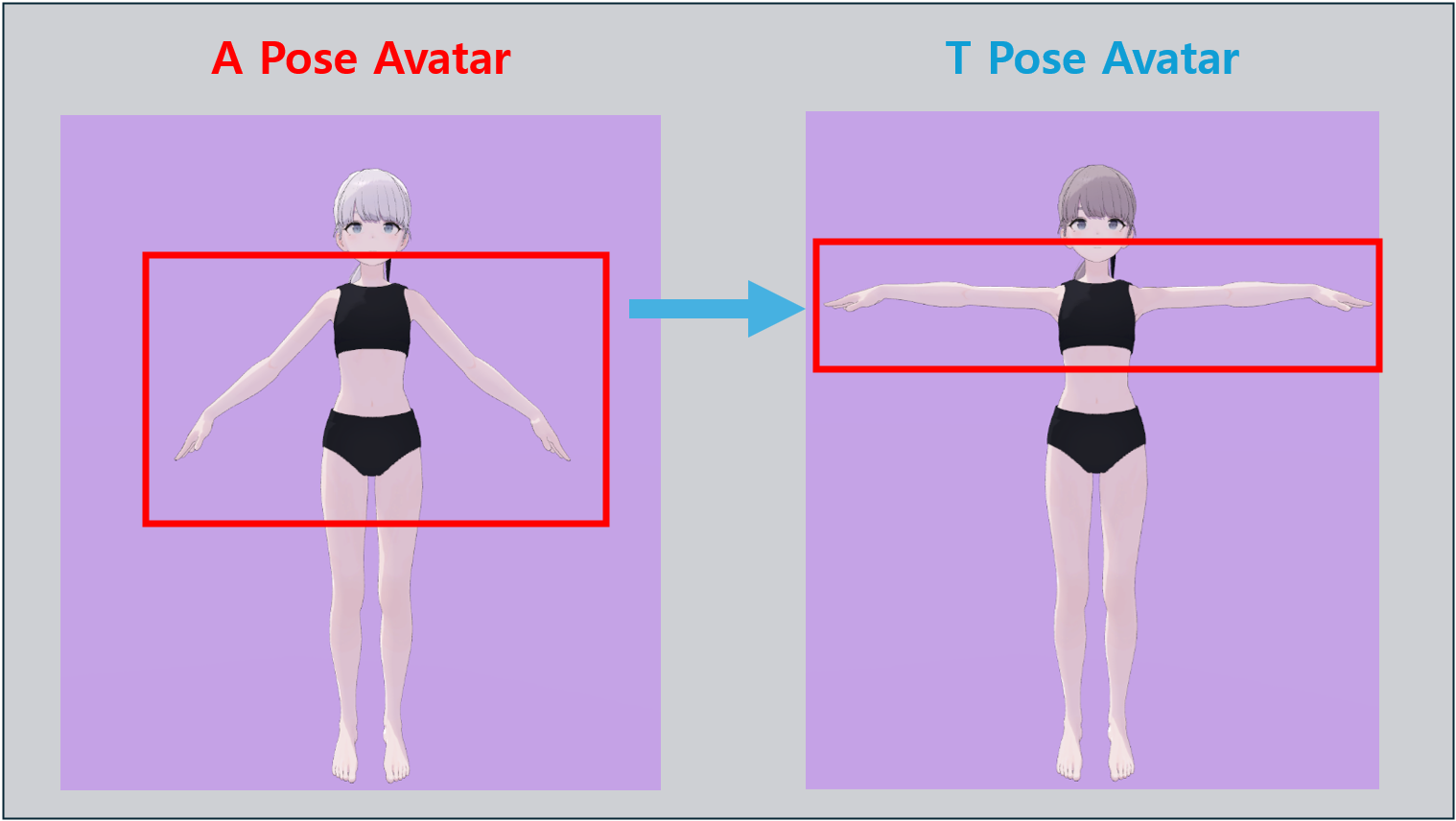
Yes. A Pose avatars are supported.
For an A Pose avatar, enable A Pose Avatar next to the avatar assignment field, as shown below.
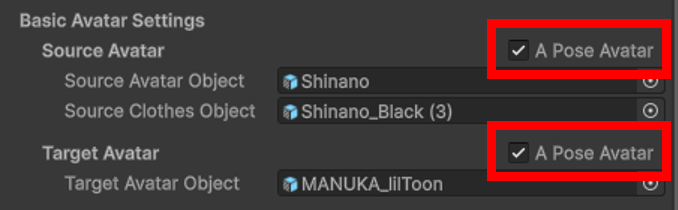
When enabled, the tool automatically moves the arms into a T Pose before fitting.
- For a Source Avatar, the clothing is also transformed automatically to match the T Pose.
⚖️ Can avatars with very different body shapes be matched?#
Large body-shape differences, especially a large difference in chest size, may produce unnatural deformation or cause fitting to fail.
For more stable results:
- Use avatars with similar body shapes, or
- Adjust a BlendShape such as Big Breast, or use an editing tool such as Mesh Studio to make the body shapes as similar as possible before fitting.
See Tips for Improving Fit for more information.
🧍♀️🧍♂️ Can clothing be fitted between avatars of different genders?#
Yes. Avatar gender does not affect the operation of the tool.
Example: https://x.com/EDEN_LABS_JP/status/2012466971267215649?s=20
However, large body-shape differences, such as in the chest area, may produce an unnatural result. In that case, we recommend making the body shapes as similar as possible with BlendShapes before running the fitting.
📦 Can I export fitted clothing as a Unity Package?#
If you performed the fitting with [Advanced Option] - [Weighting Settings] - Transfer Weight To Avatar disabled, you can make the clothing into a Prefab and export it as a Unity Package.
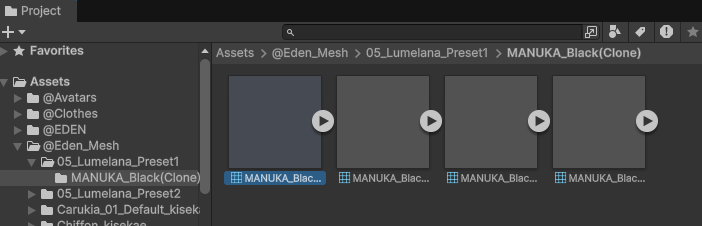
- The transformed Mesh is saved under
Assets/@Eden_Mesh*. Make sure to include the Mesh file when exporting the Unity Package.
📤 Can I export the fitted clothing as an FBX?#
Yes, you can export fitted clothing in FBX format.
Enable the FBX export option to save the result as an FBX file when the conversion is complete. You can import the saved file into Blender or other 3D tools for further editing.
Save location: Assets/@Eden_Mesh/<Avatar Name>/<Clothing Name>
🧩 Can BlendShape Generator create BlendShapes only for supported clothing?#
No. You can create BlendShapes for clothing that does not have a dedicated profile.
Dedicated clothing can produce more precise results, but regular meshes and hair meshes can also receive BlendShapes based on changes in the avatar's BlendShapes.
⚙️ Can I use Unity 2019.4.31f1, the older VRChat version?#
No. Unity 2019 does not support some of the functions used by the tool. Please use Unity 2021 or later.
❗Where should I ask for help if an error occurs?#
Review How to Contact Support, prepare the listed information, and contact us in the [❓|help_質問] channel on the Eden Labs Discord.
Troubleshooting#
👕 Clothing expands too much#
This can happen in the following cases.
A Shrink BlendShape is applied to the Source Body Mesh
Check the Source Body Mesh BlendShape values and disable any Shrink-related value.
The Source Avatar and Source Clothes are not aligned correctly
Check that the two objects have the correct Position, Rotation, and Scale.
The Source Avatar and Source Clothes use different BlendShape states
For example, if the avatar uses
Big_Breast: 0while the clothing usesBig_Breast: 100, the difference is included in the fitting and may make the clothing expand too much.
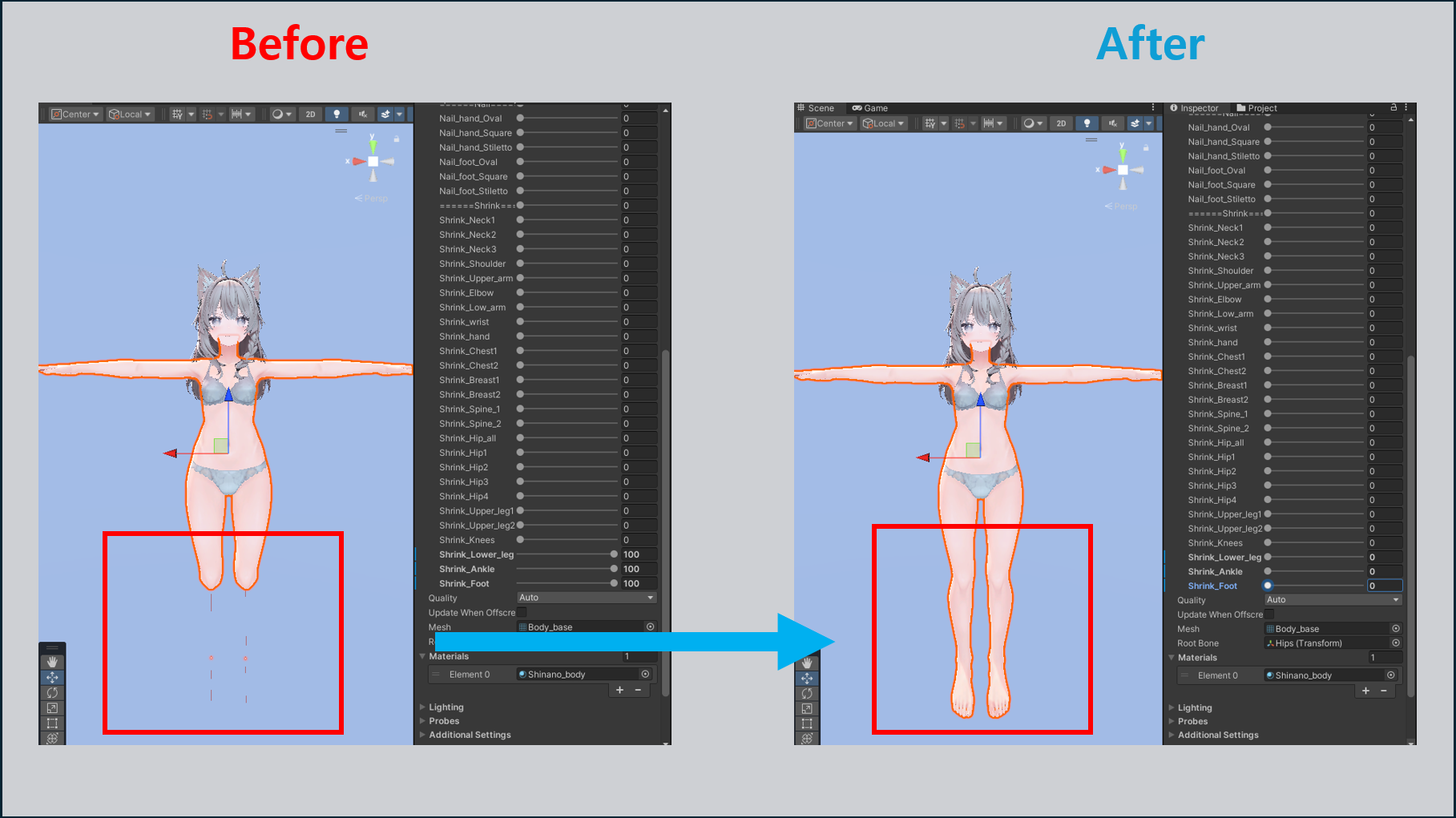
👕 Clothing shrinks too much#
If clothing is reduced abnormally, check the following.
A Shrink BlendShape is applied to the Target Body Mesh
Check the Target Body Mesh BlendShapes and disable any Shrink-related value.
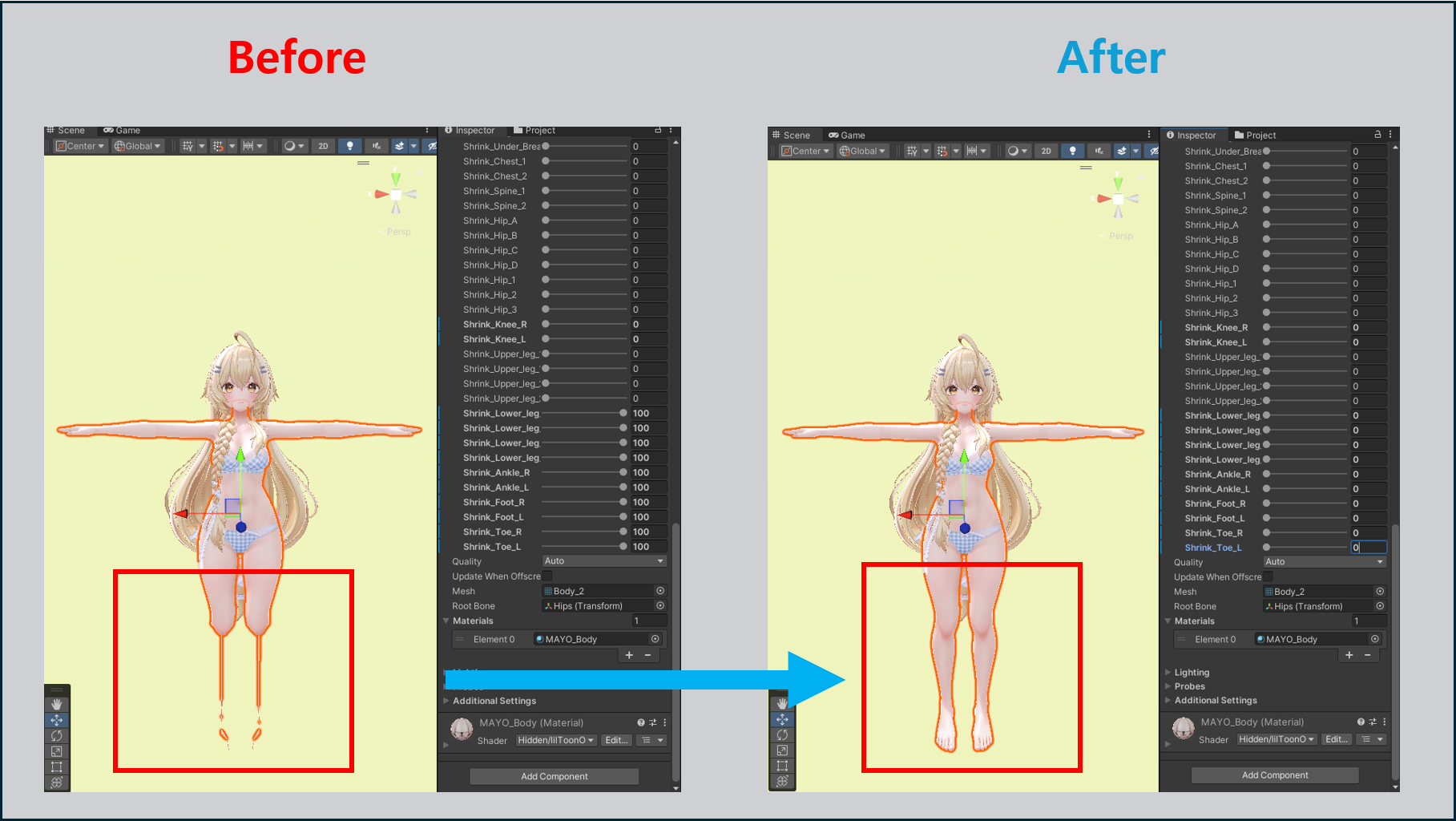
🦶 Feet are deformed incorrectly#
If the foot shape looks unusual, check the following.
The Foot BlendShape differs between the Source Avatar or Profile and the Target Avatar
Adjust both avatars so their Foot BlendShapes produce the same shape.
If the problem continues, select Preserve Shoe Shape in the Basic Option to keep the shape of meshes around the feet.
See the foot section in Tips for Improving Fit.
🧍 A Body Mesh cannot be found#
- If the Body Mesh cannot be detected automatically, the Body Mesh selection window appears. Select the torso Mesh and click Select.
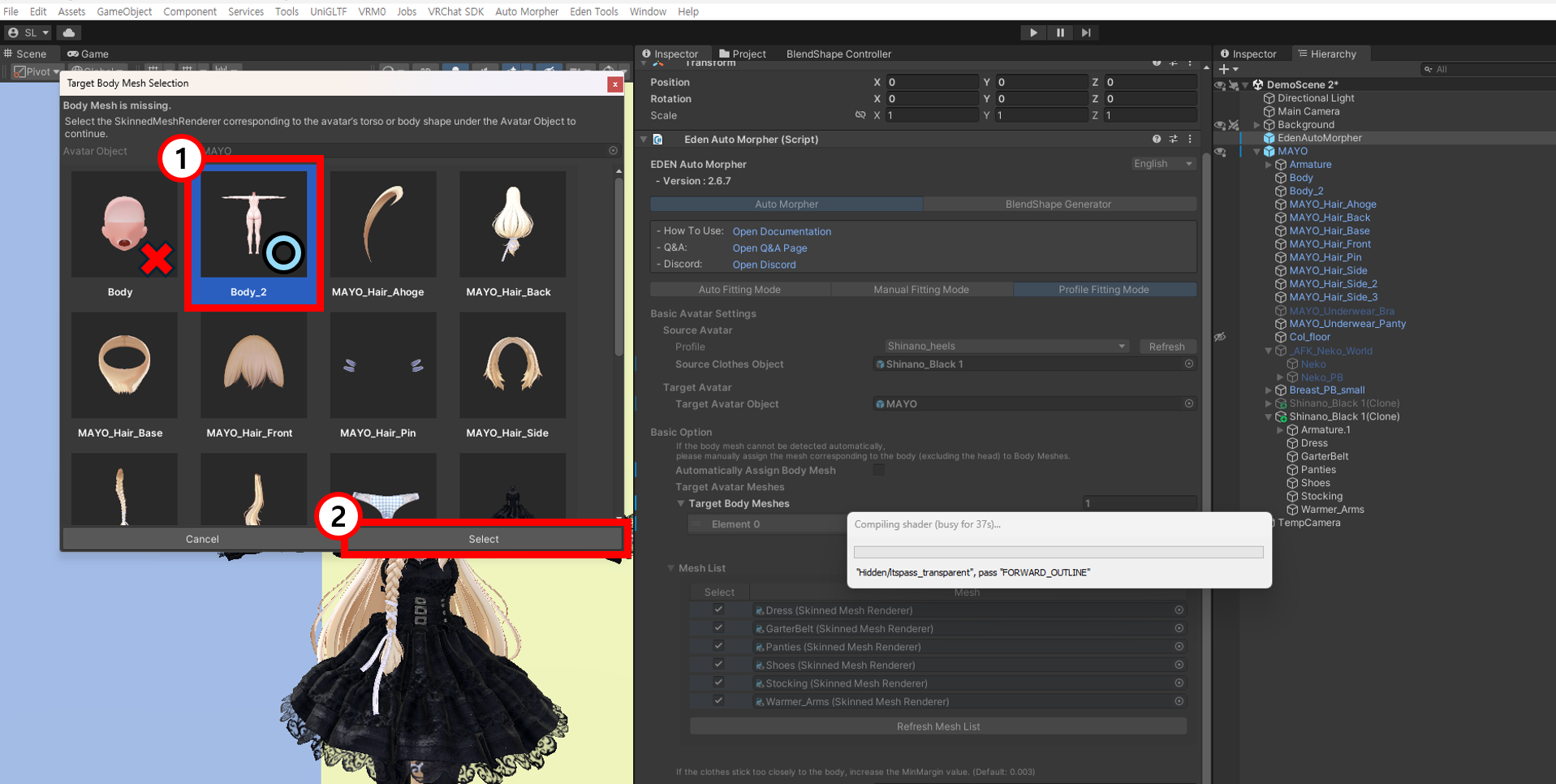
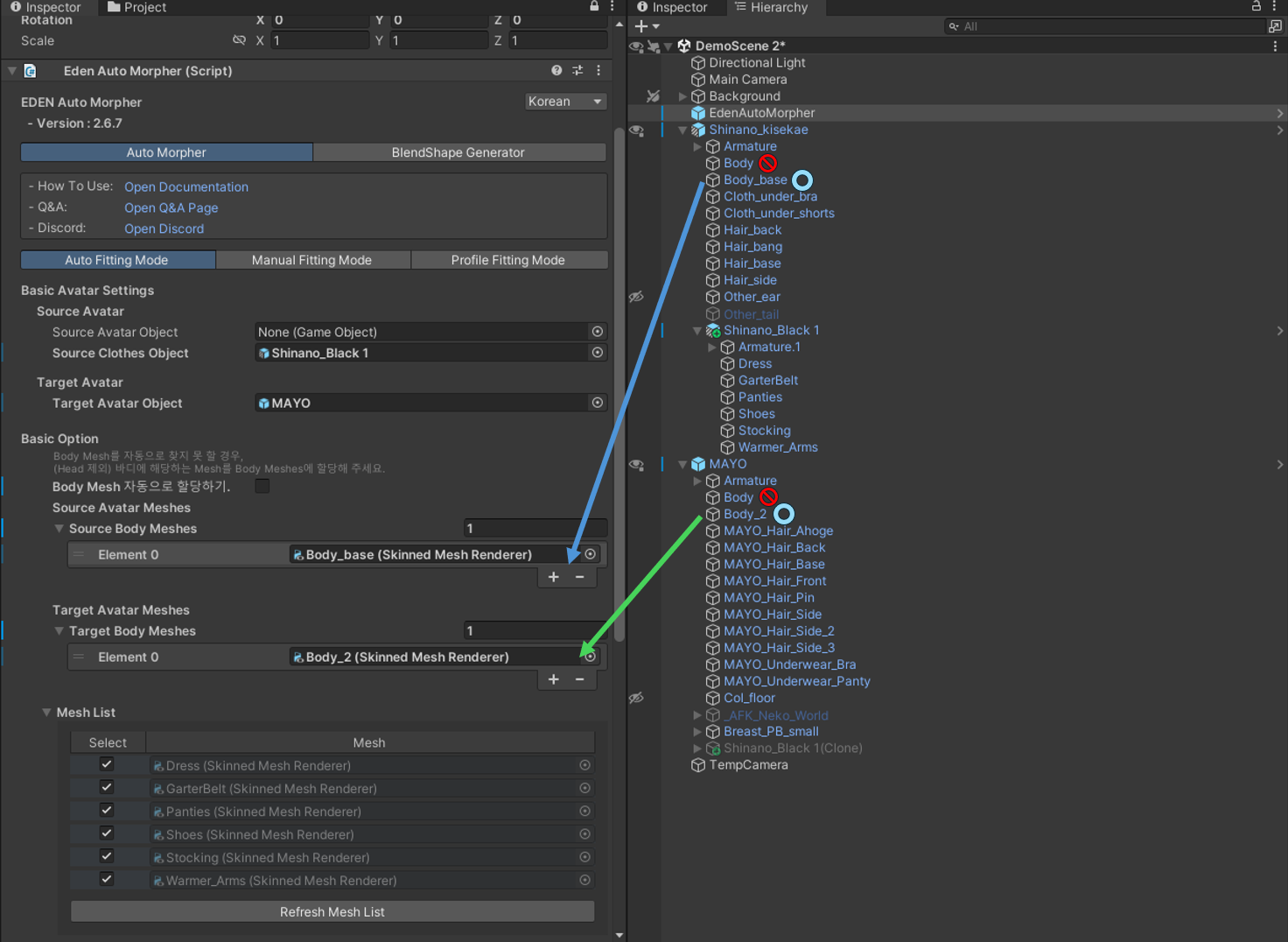
If the tool still cannot find the Body Mesh, disable automatic Body Mesh detection and assign the Body Mesh manually.
If the avatar has multiple Body Meshes, manually specify the Mesh used as the body-shape reference and select the meshes to process in Mesh List.
⚠️ clothesHumanoidMatchedBones is null#
This error occurs when the tool cannot find Source Clothes bones that match the selected Source Avatar or Profile.
Check the following:
- Confirm that the Source Clothes are made for the selected Source Avatar or Profile.
- Clothing made for another avatar, or clothing with different bone names or hierarchy, cannot be fitted. Check that bone names and positions match.
- Place the clothing under the Source Avatar, reset its Transform, and try again.
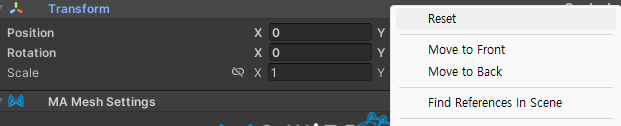
⚠️ Transform resides in a Prefab asset and cannot be set to prevent data corruption#
This error may occur when an original avatar or clothing Prefab from the Project window is assigned directly to きせった (Kisetter).
Place the avatar and clothing in the Hierarchy first. Then select EDEN LABS > きせった (Kisetter) from the Unity Editor menu bar to open the separate window, and assign the Hierarchy objects there.
⚠️ Use Source Profile: refBone transform is null (refBone = {Humanoid Bone})#
This error occurs when the clothing does not contain the reference bone used for automatic pose adjustment with Use Source Profile.
If you have other clothing made for the same avatar, copy the bone corresponding to the refBone named in the error and add it to the clothing with the problem. Match both the bone name and position.
This case is planned to be handled automatically in a future update.
🦴 Clothes Armature Error#
This error is related to the clothing Armature.
- The tool cannot operate correctly if only a Skinned Mesh Renderer is assigned without a clothing Armature.
- Assign the complete clothing object, including its Armature.
- To fit clothing already attached to an avatar, see Tips for Improving Fit.
🪡 Why can't I move the clothing after fitting?#
If [Advanced Option] - [Weighting Settings] - Transfer Weight To Avatar was enabled, weights for body bones such as Hip and Chest are transferred to the Avatar Armature.
As a result, moving the corresponding bones in the clothing Armature no longer changes the clothing position. To adjust the clothing bones after fitting, run the fitting again with this option disabled.

🧥 Existing fitted clothing disappears#
When [Basic Option] - Remove AutoMorphed Other Clothes is enabled, clothing previously fitted to the Target Avatar with きせった (Kisetter) is removed automatically.
Disable this option if you want to fit two or more outfits to the same avatar.
🔁 BlendShape Generator added a Body Base BlendShape#
If a reference Mesh has a value other than 0 for Breast_Small, BigBreast, or another selected BlendShape, the tool treats the current shape as Weight 100 for that BlendShape.
- A
Body BaseBlendShape is added to restore the shape for Weight 0. - Keep
Body Baseat 100 so the other generated BlendShapes operate correctly.
🧬 A BlendShape used together with another BlendShape does not match the avatar#
BlendShape Generator is designed primarily to create each BlendShape independently.
To create a BlendShape that should be used while another BlendShape is active, see Creating a BlendShape Used with Another BlendShape in Tips for Improving Fit.
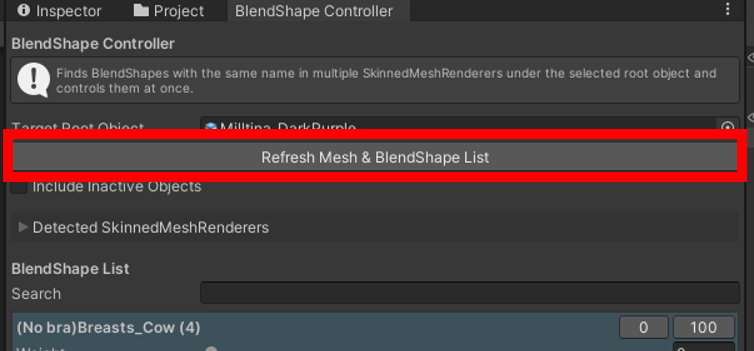
🎛️ BlendShape Controller moves a different BlendShape#
If the BlendShape list or order changes while the tool is in use, a different BlendShape may move instead of the selected one.
Click Refresh Mesh & BlendShape List to refresh the list, then try again.
Other#
❓ What makes this tool different?#
This tool is designed to help users without professional modeling knowledge apply clothing to avatars easily and freely.
It automatically analyzes an avatar's physical features and adjusts clothing to the body shape of the target avatar. The process is designed to work with minimal input:
- You can attempt fitting with only a Source Avatar and Target Avatar.
- If a Source Profile is available, you can perform the fitting with only the Target Avatar and clothing.
Some results may still require additional correction depending on the avatars and clothing. The tool continues to improve based on actual use cases, with the goal of allowing everyone to use avatar clothing with fewer limitations.