
How to Create and Add a Profile
Create and install profiles containing outfit fitting information.
きせった (Kisetter) 3.5.0 documentationHow to Create a Profile#
Place the avatar in the Scene that you want to use to create the Profile.
Reset the avatar’s Rotation and Scale to their default values.
Verify that the avatar correctly contains the following components:
- Animator
- Body Skinned Mesh Renderer
Adjust the Body Mesh BlendShape so that the entire body is fully visible, with no shrinkage or hidden parts.
- Depending on the Profile you are creating, adjust BlendShape such as 👠 Foot Heel or 👙 Breast.
Add Kisetter – Kisetter_ProfileSaver to the Hierarchy.
Enter the name of the Profile to be created in Profile Name.
Assign the target avatar to the Source Avatar slot.
Assign the Body Skinned Mesh Renderer to the Source Body Mesh slot.
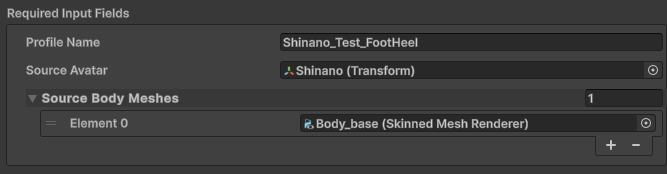
Click the Save Profile button.
- If necessary, adjust the Body Mesh Shape Keys and repeat the previous steps to create Profiles for specific Shape Keys.
Verify that the Profile has been created successfully.
- Profile path:
Assets\@Eden_Tools\Kisetter\Profiles
- Profile path:
How to Add a Profile#
Add the Profile folder to the Profile path.
- Profile path:
Assets\@Eden_Tools\Kisetter\Profiles - If the desired Profile does not appear in the list, manually add the Profile folder to the path above.
Example Profile folder structure:
Profiles
└─ ProfileName
├─ ProfileName.json
└─ ProfileName.eb

- Profile path:
Verify that the Profile appears correctly in きせった (Kisetter).
From the Unity Editor menu bar, select EDEN LABS > きせった (Kisetter).
When きせった (Kisetter) opens in a separate editor window, select Use Source Profile.
After selecting Use Source Profile, check that the added Profile appears.
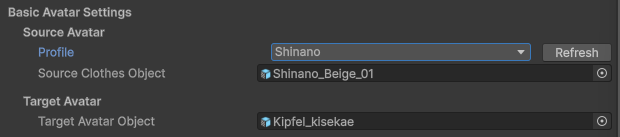
- Profile: The avatar Profile corresponding to the clothing.
- If the Profile does not appear in the list, click Refresh to reload the list, or verify again that the Profile exists under
Assets\@Eden_Tools\Kisetter\Profiles.
- If the Profile does not appear in the list, click Refresh to reload the list, or verify again that the Profile exists under
- Profile: The avatar Profile corresponding to the clothing.