Adjust color and tone
Use Set Hue, Hue Shift, intensity, brightness, contrast, and gamma to adjust outfit and hair colors.
きせった (Kisetter) 3.5.0 documentationFor mesh and UV selection, previews, and saving, see the Texture Studio Guide.
[1] Choose a color#
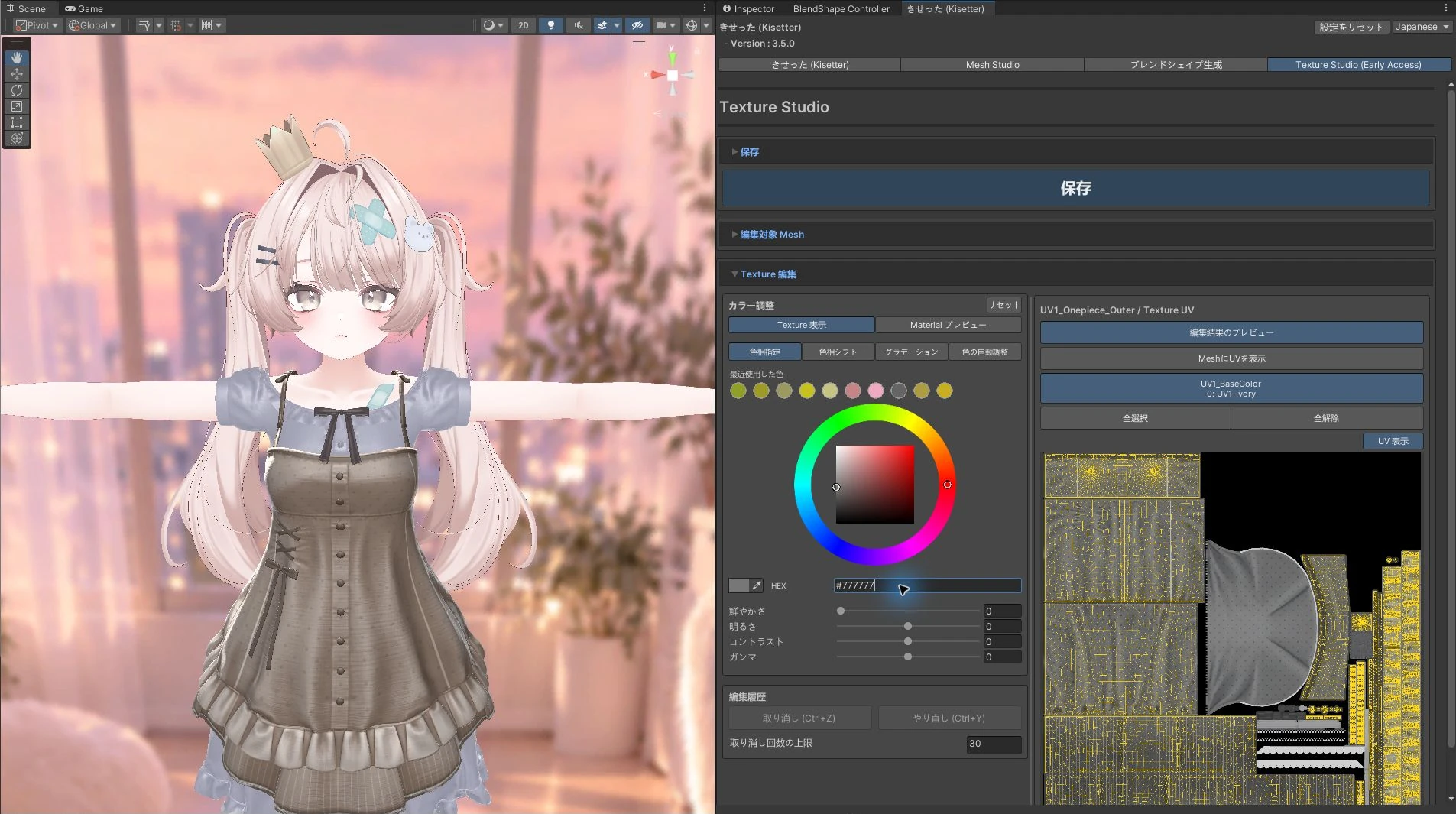
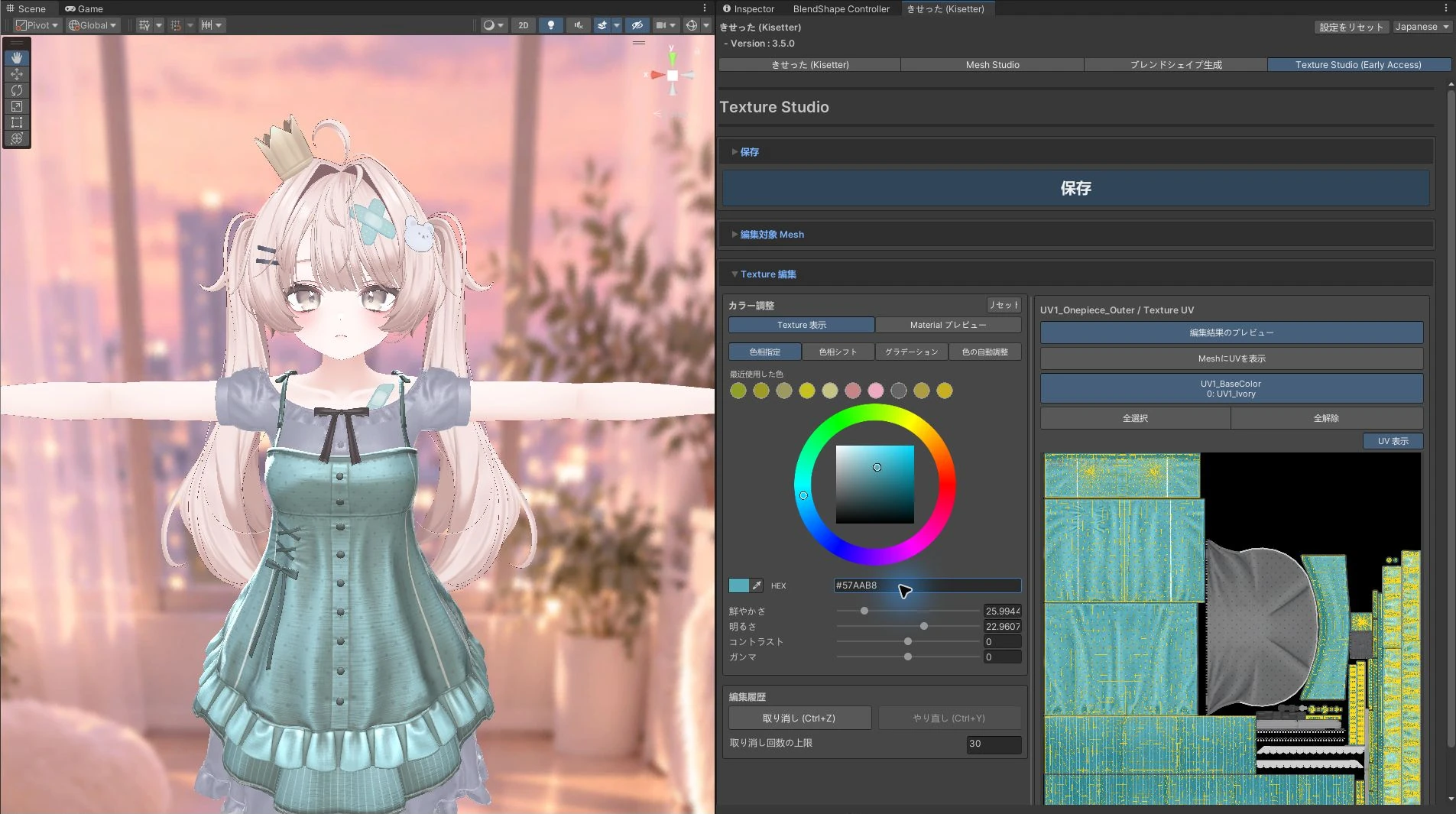
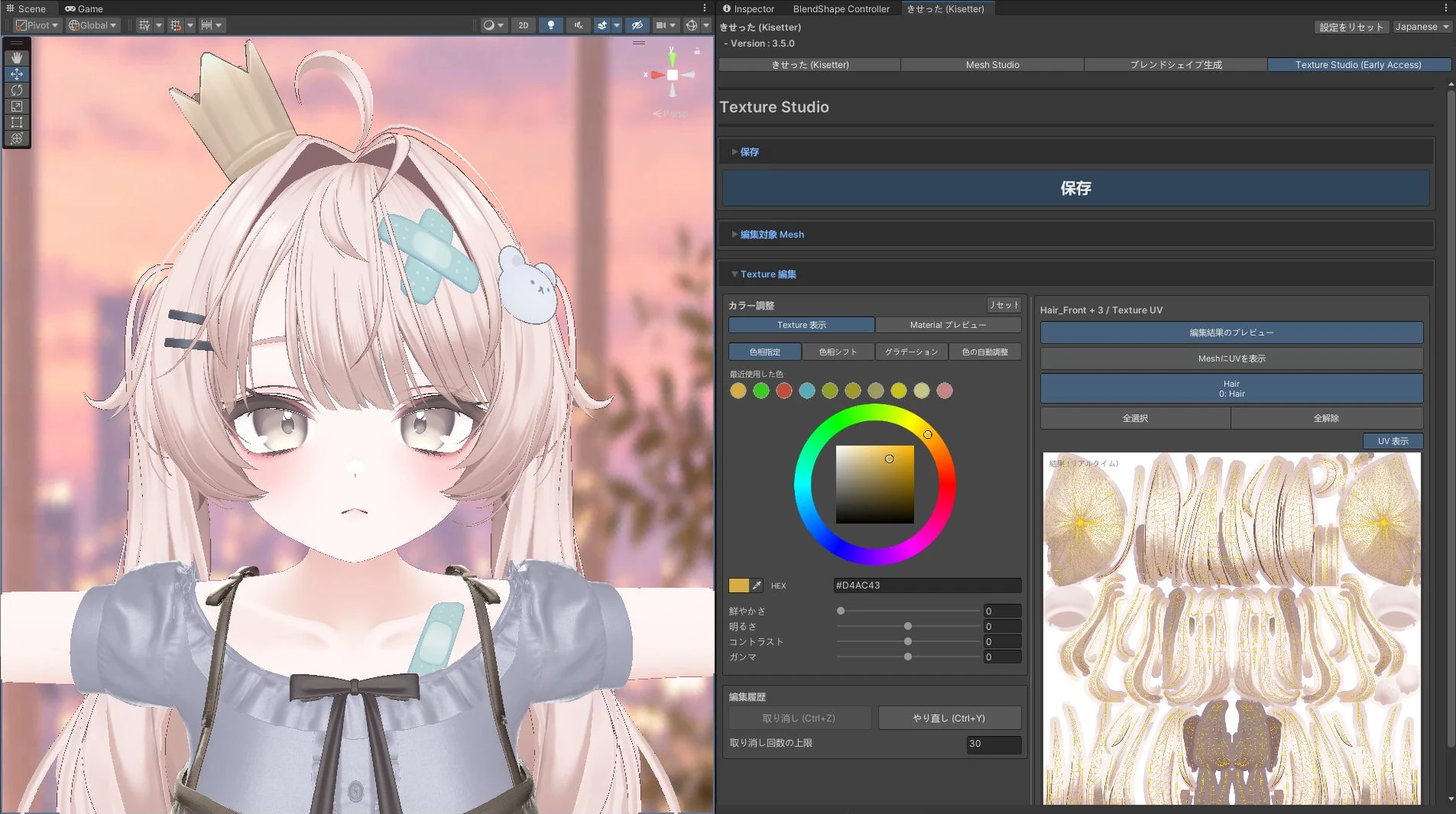
- Select the meshes and UV regions.
- Open Set Hue.
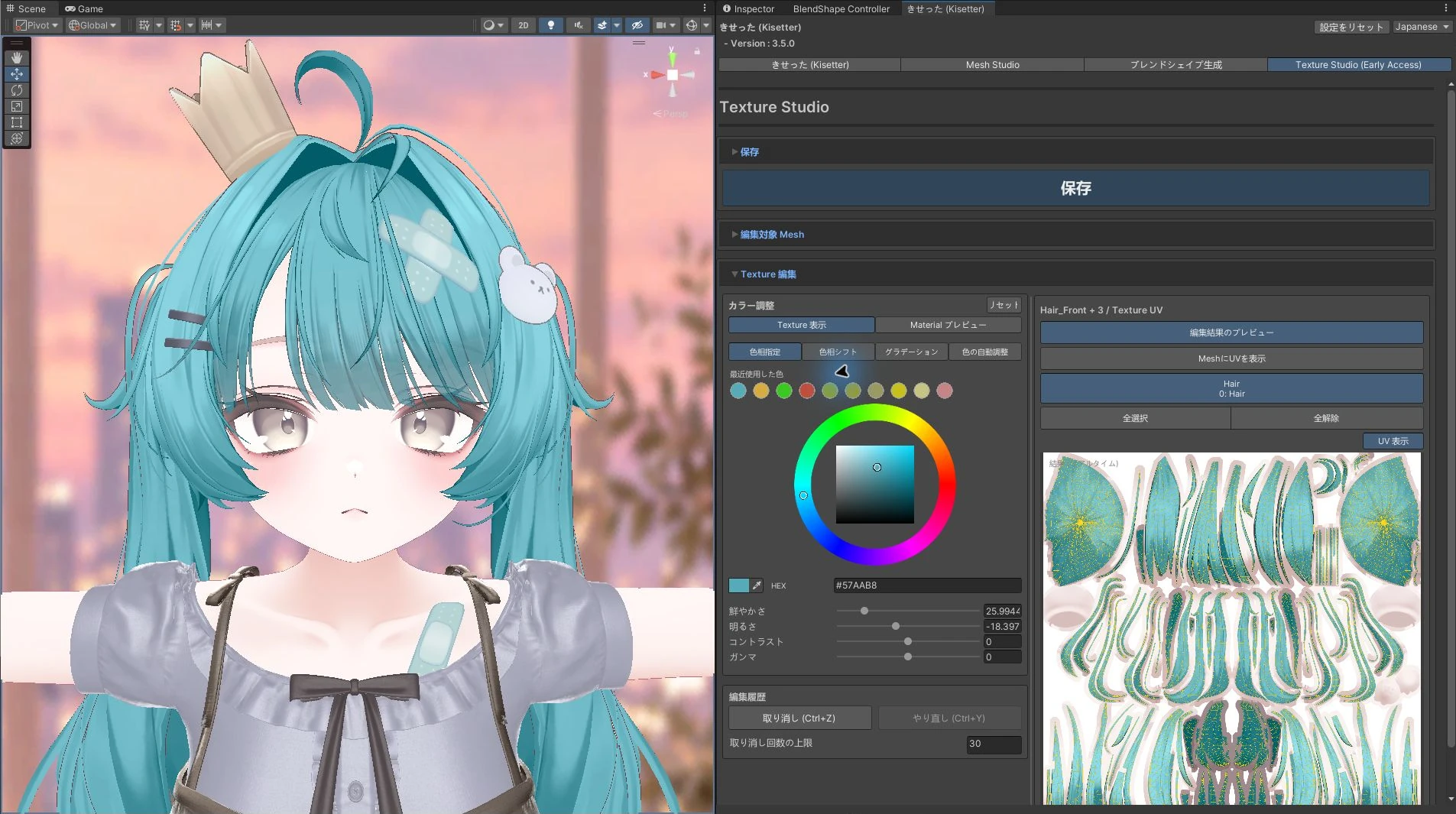
- Choose a color from the palette, or enter a HEX code and press Enter.
- You can also reuse Recent Colors.
- Adjust tone while checking the Scene view. These examples use
#57AAB8.
Outfit example
Hair example — multiple meshes together
Texture view and material preview#
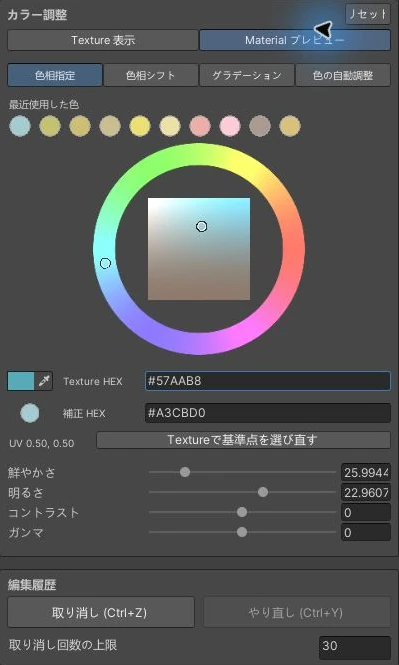
- Texture View shows texture colors before material correction.
- Material Preview reflects supported lilToon Main Texture color correction in the palette and UV view. It does not reproduce Scene lighting, shadows, reflections, emission, or transparency.
- Texture HEX / Preview HEX show the color codes before and after correction at the selected reference point.
- Reselect Reference Point in Texture changes the palette's reference UV. It does not change the selected editing region.
[2] Shift existing hues and adjust tone#
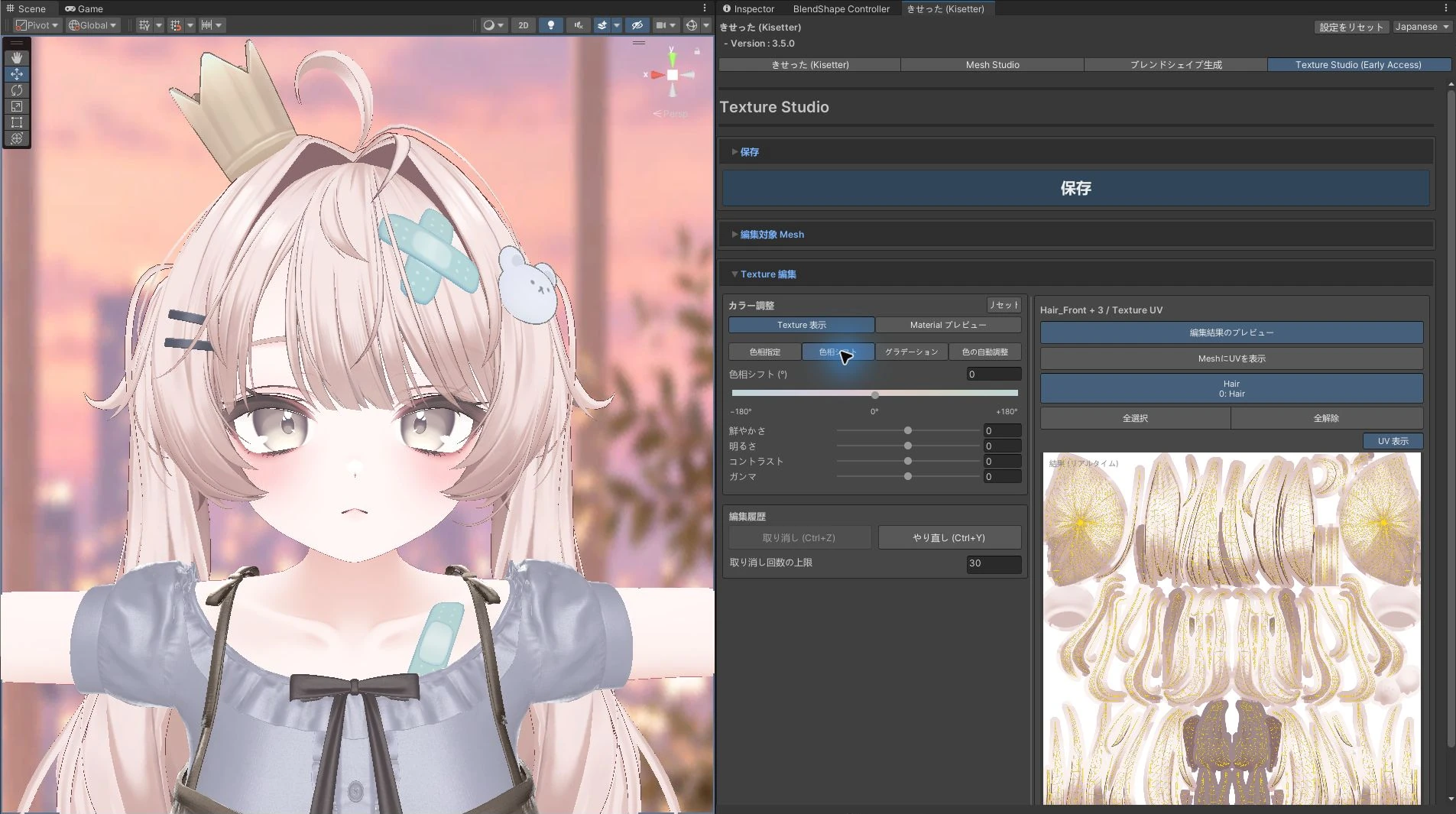
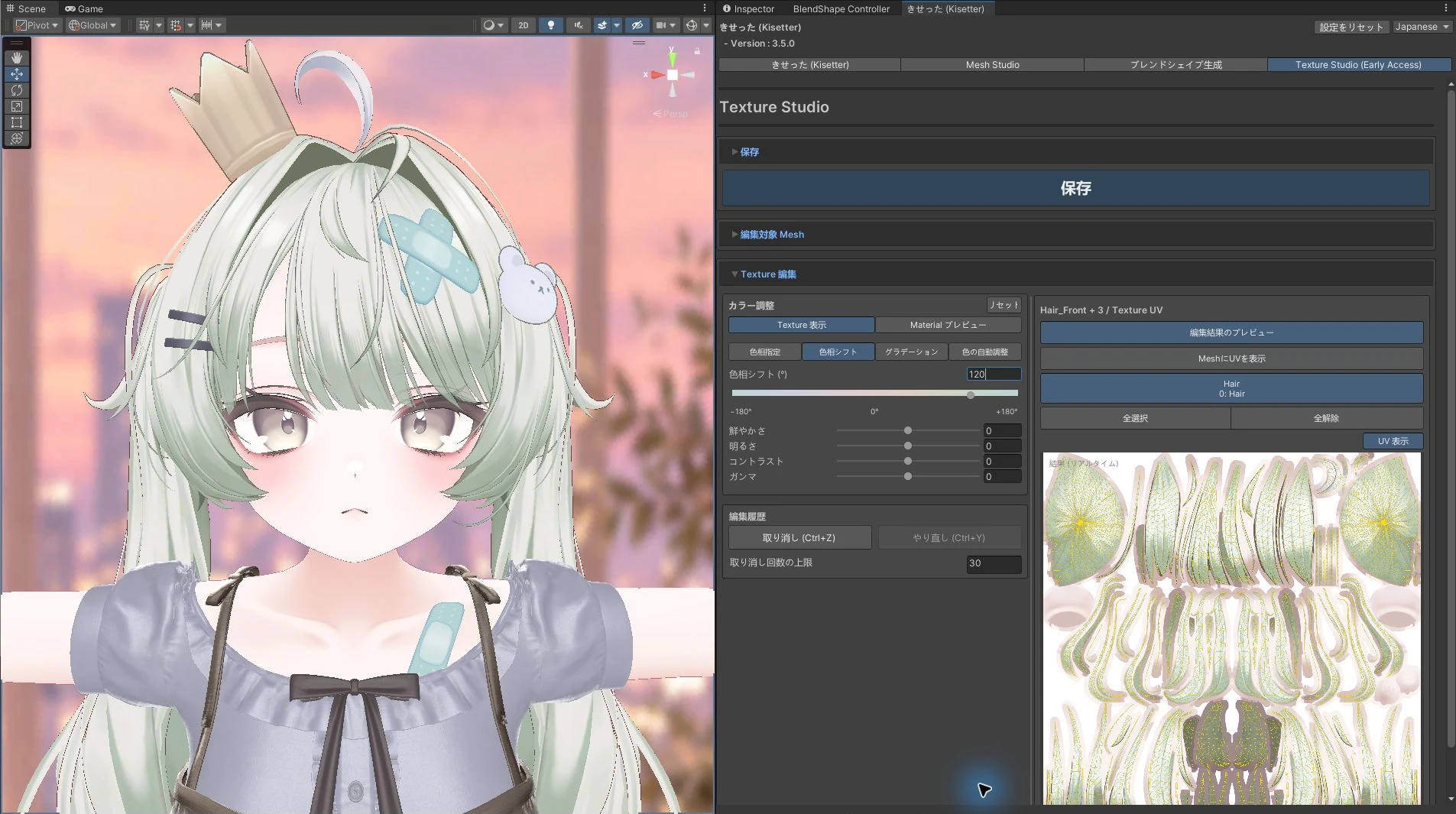
In Hue Shift, move a slider or enter a value in its number field. 0 means no adjustment.
The examples below show the result of adjusting each control.
| Control | Lower values | Higher values |
|---|---|---|
| Hue Shift (°) | Shift in the opposite direction around the color wheel | Shift hue around the color wheel |
| Intensity | Reduce saturation toward neutral gray | Make existing colors more vivid |
| Brightness | Darken the overall result | Lighten the overall result |
| Contrast | Soften the difference between light and dark | Strengthen the difference between light and dark |
| Gamma | Lighten midtones | Darken midtones |
Hue Shift (°)#
Shift hues around the color wheel. Setting this to +120° changes the pale pink hair to mint.
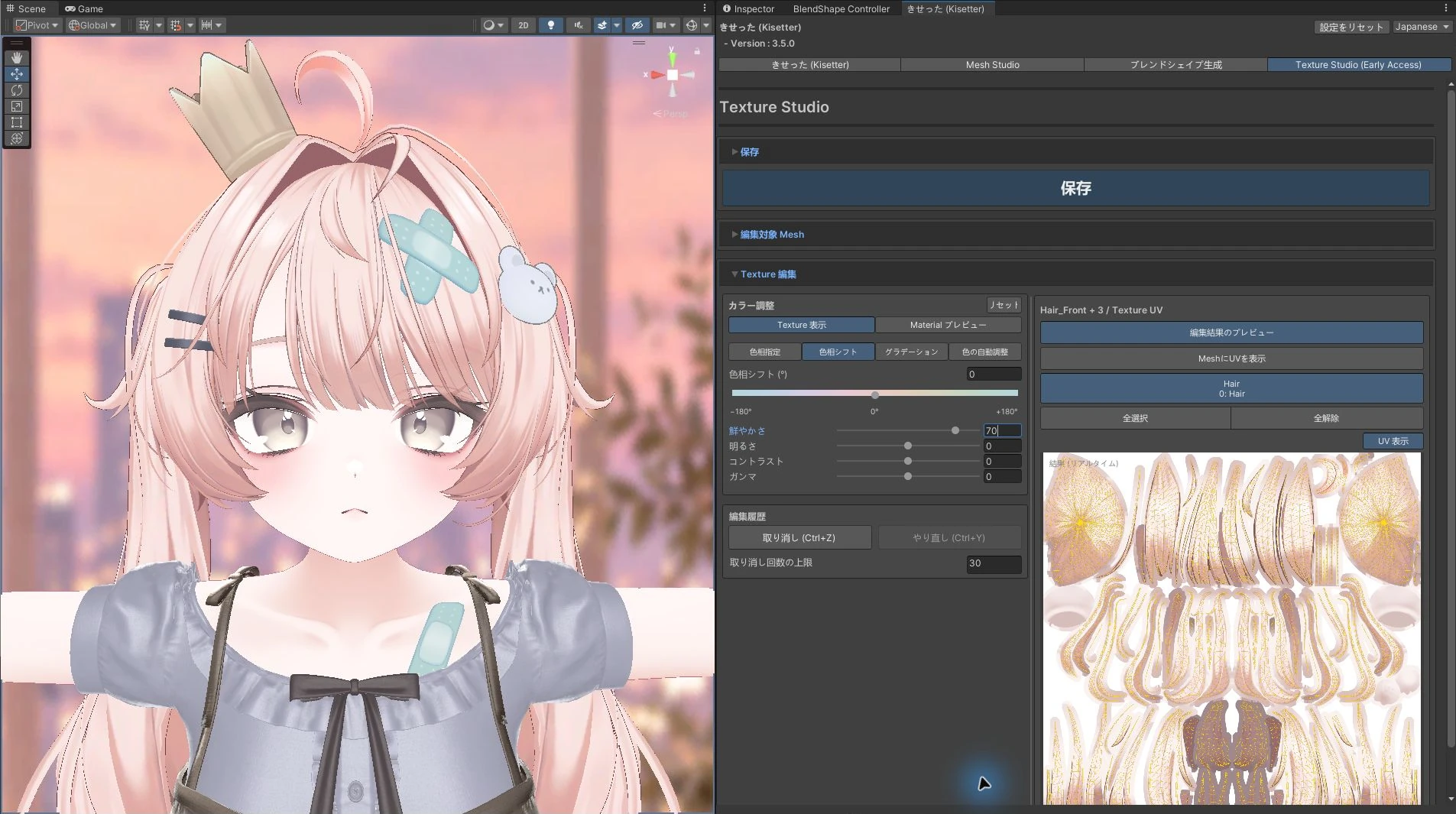
Intensity#
Adjust color saturation. Setting this to +70 makes the pink more vivid.
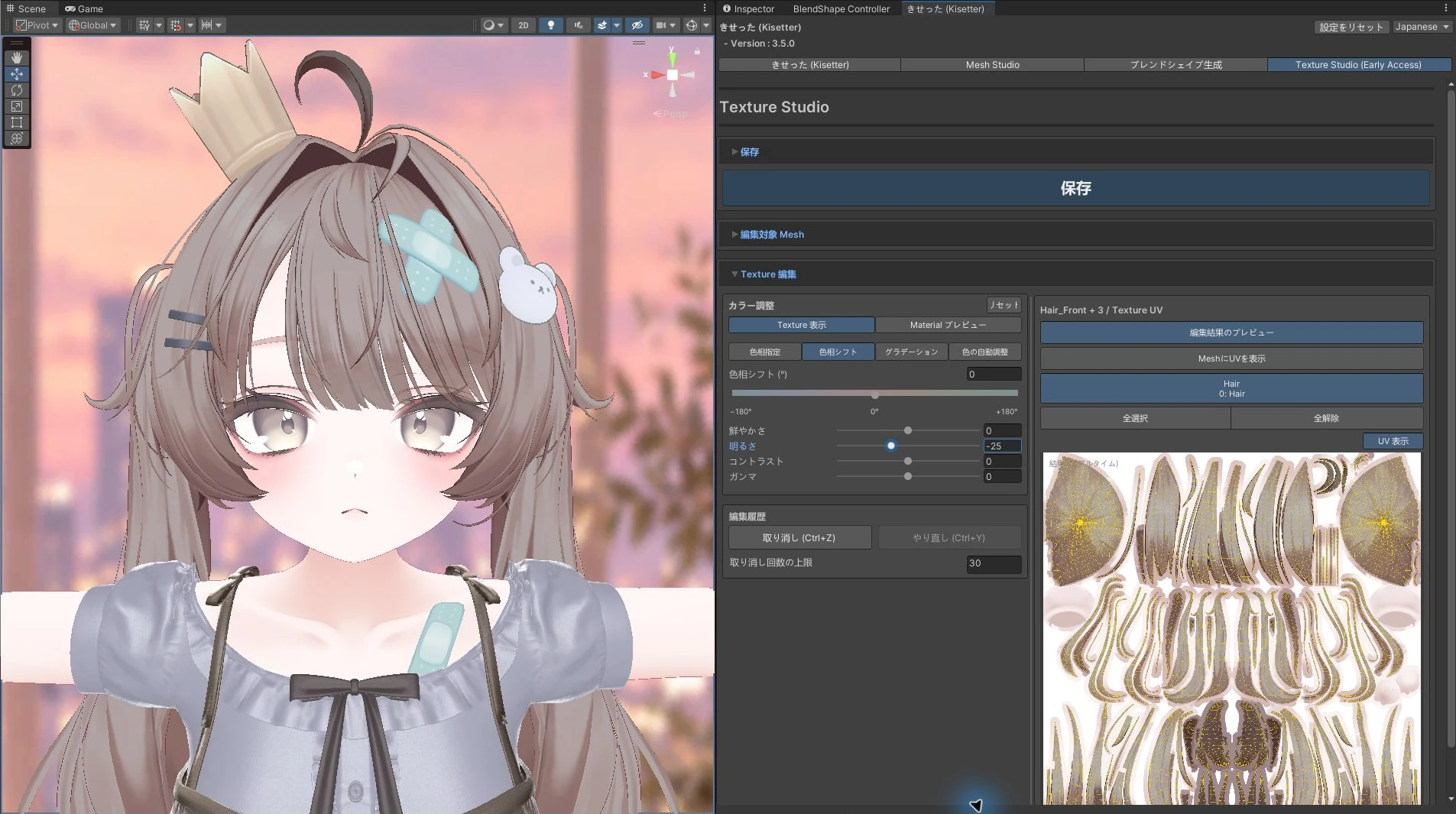
Brightness#
Lighten or darken the whole selected region. Setting this to -25 darkens both highlights and shadows.
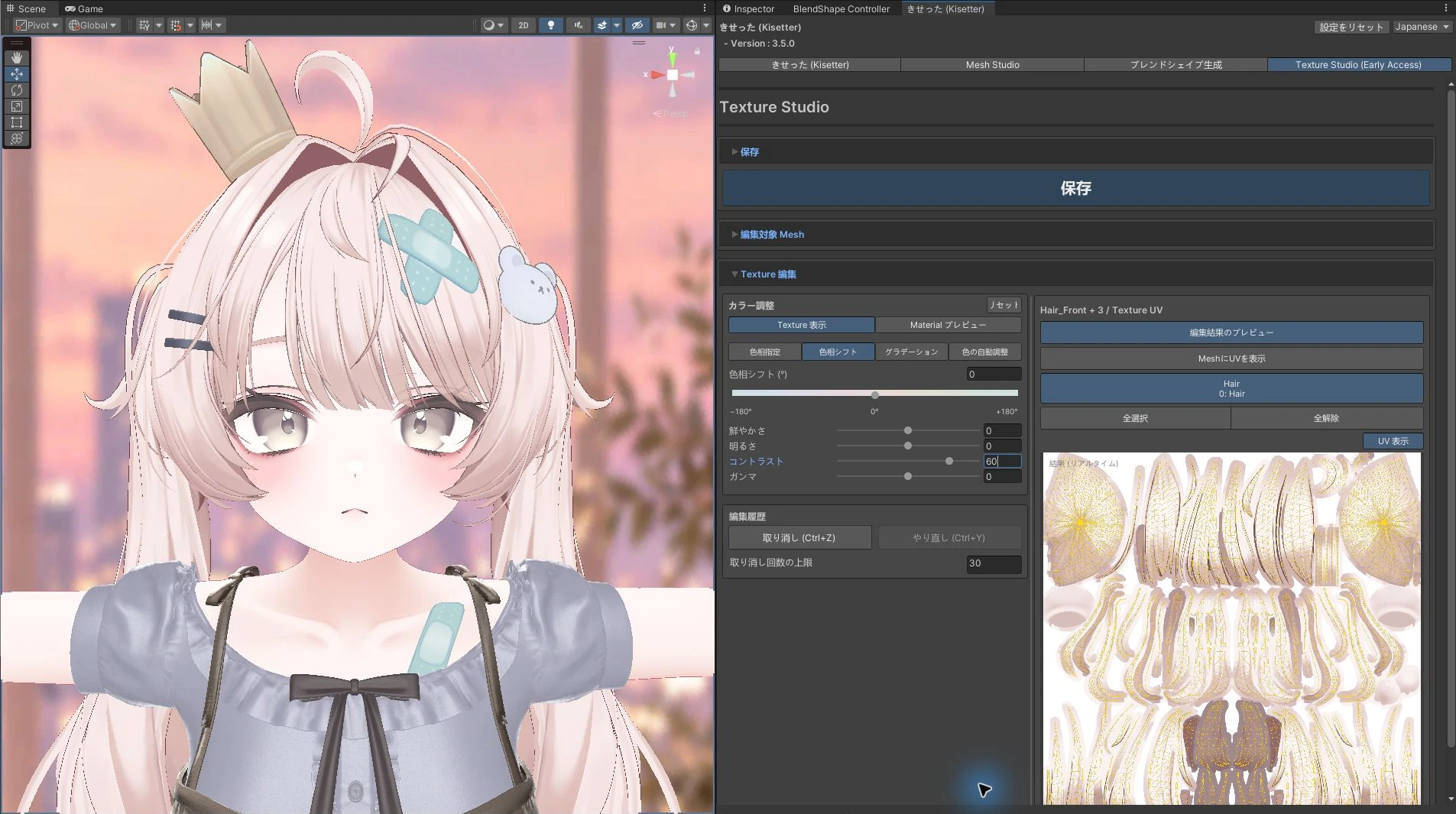
Contrast#
Adjust the difference between light and dark areas. Setting this to +60 emphasizes the contrast between hair strands.
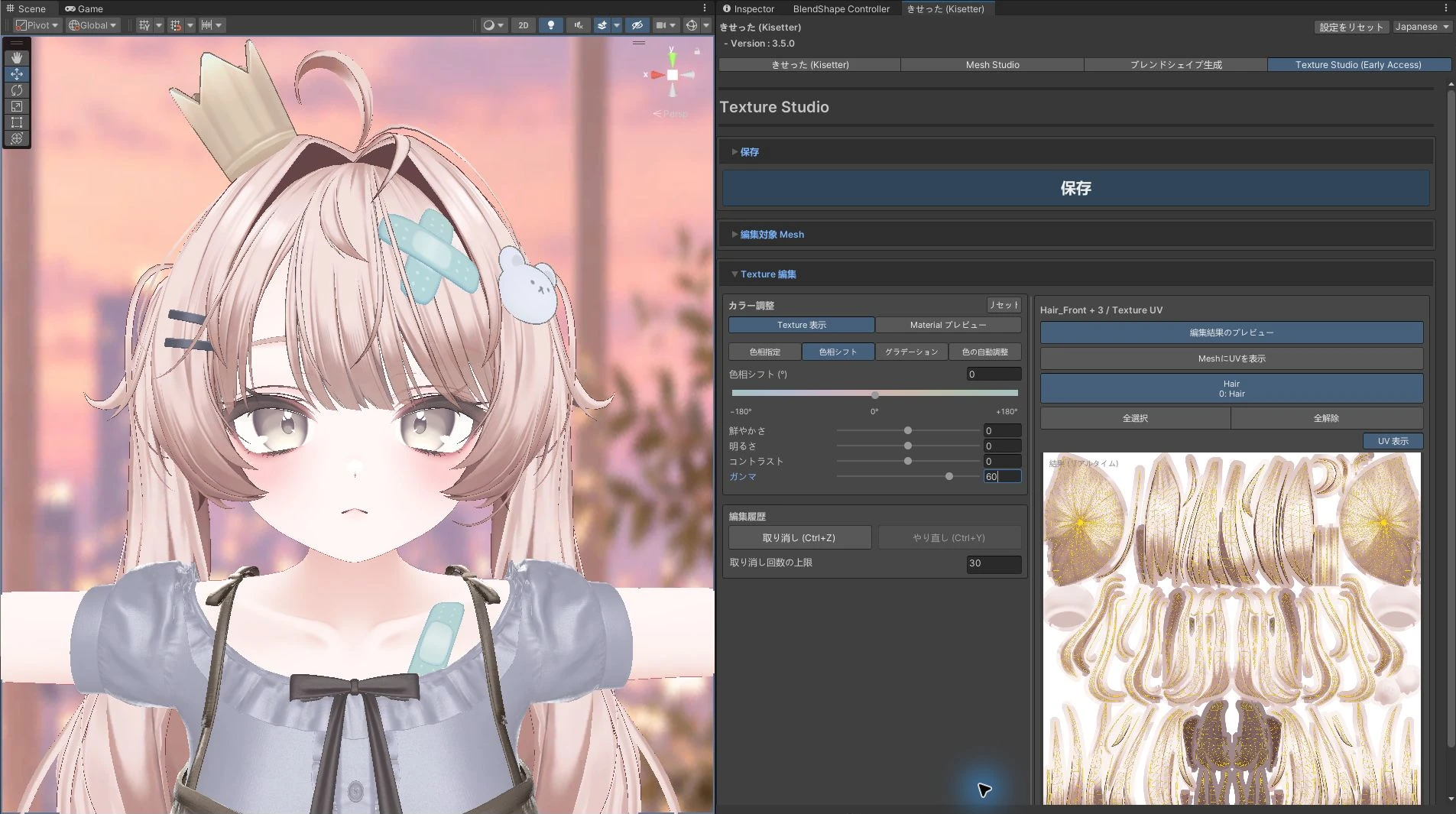
Gamma#
Adjust midtone brightness. Positive values darken midtones; negative values lighten them. This example uses +60.