
Shrinkwrap
Fit clothing to the reference surface at the specified gap.
きせった (Kisetter) 3.4.1 documentationShrinkwrap fits the Main Mesh to a reference surface. It is useful for reducing the gap where clothing floats away from the body.
[1] How to use it#
- Assign Reference Meshes and set Surface Gap (mm).
- Adjust brush radius and strength.
- Drag over the area to fit, then inspect it from other angles.
[2] Brush settings#
| Option | Description |
|---|---|
| Brush Radius | Set the area around the cursor to fit to the reference mesh. |
| Brush Strength | Set how strongly the clothing moves toward the reference surface and specified gap. Lower values let you fit the surface gradually. |
| Symmetry | Enable X / Y / Z to apply the operation to the opposite side relative to Root Object. Multiple axes can be enabled together. |
| Input | Action |
|---|---|
| Shift + mouse wheel | Adjust brush radius. |
| Ctrl + Shift + mouse wheel | Adjust brush strength. |
| Shift + mouse wheel with Caps Lock on | Adjust brush strength. |
| Esc | Cancel the current brush stroke. |
Use these shortcuts in the Scene View. On macOS, use Command instead of Ctrl.
[3] Reference meshes and surface gap#
Use Reference Meshes to specify the surface to fit the clothing to. You can use the avatar’s body meshes or other meshes.
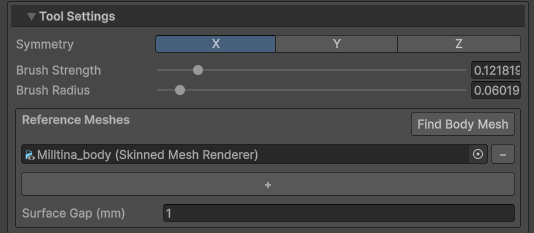
- Check the body mesh automatically found in the clothing’s parent hierarchy.
- Click Find Body Mesh to search again for a body mesh on a Humanoid Avatar in that hierarchy.
- Use + to add a reference and − to remove one. Manually added meshes are retained during automatic discovery.
The Main Mesh itself and renderers sharing its mesh data are excluded from the references.
Surface Gap (mm) sets the clearance to leave between the fitted clothing and the reference surface. Enter 1 for a 1 mm gap.
[4] Check the result#
Use Resolve Clothing Clipping to bring penetrating areas outside the surface, and Shrinkwrap to adjust the fit along the surface.
[5] Save your edits#
After editing, recalculate weights and realign PhysBones if needed. See saving and mesh separation to save the result as a Mesh or BlendShape.